4.1.70-x
2026-10-08 | 4.1.70-5 POS
The information provided below includes the user experience, process workflow, and infrastructure improvements and updates for this production version of POS API and UI.
Refer to change tickets: CHANGE-16340 and CHANGE-16377 when speaking with a team member about this release.
Improvements
POS-52332, POS-58342, POS-58760, POS-58861 | Printers | Technical improvement to TCP connection for kitchen printers. |
POS-58955 | Online Orders | Technical improvement to Queue Time in relation to Saved and Paid online orders. |
POS-58984 | Credit Cards | Orders with Partial Credit Approval are updated on reports and the iMin/Moby as expected. |
POS-58987 | QR Codes | Technical improvement to QR code scanning using iMin Swift Pro camera. |
POS-58994, POS-59083 | Online Orders | Technical improvement to message processing to ensure the order state of Online Orders is updated and persisted as expected. |
2026-08-05 | 4.1.70-3 POS
The information provided below includes the user experience, process workflow, and infrastructure improvements and updates for this production version of POS API and UI.
Refer to change tickets: CHANGE-15377, CHANGE-15443, CHANGE-15493, CHANGE-15528, CHANGE-15654, CHANGE-15691, and CHANGE-15737 when speaking with a team member about this release.
New Features
PRMA-6839, POS-57156 | Require POS users to authenticate with a badge or biometrics instead of User ID and PIN. | |
PRMA-6959, POS-55246, POS-55795, POS-55796, POS-58132 | Gift and Loyalty integrates with Online Ordering. The POS user can check in, resume, cancel, or void Open orders associated with a Loyalty customer from Loyalty Lookup. | |
PRMA-7125, POS-55877 | Include a Summary Section at the bottom of printed receipts to highlight specific items included in the order. You can optionally print each item on its own line -OR- print the total item quantity. |
Improvements
POS-47328 | Gift Cards | Improved account number masking logic in receipt templates. |
POS-55048 | Payment Types | Technical improvement to payment type identification when order total is updated due to discount or loyalty reward. |
POS-56922 | Cash Drawer | Technical improvement to NCR cash drawer communication. |
POS-56990 | Payments | Technical improvement to handling of non-transactional payments and voided mobile orders. |
POS-57163 | Tips | Technical improvement to Paid Out employee tip reporting. |
POS-57243 | Suite Catering | Update to pre-auth payment and tip processing to ensure Suite Catering orders are closed as expected. |
POS-57433 | Receipt Templates | Technical improvement to ensure receipts printed from a backup printer use the appropriate template. |
POS-57632 | EOD | Technical improvement to terminal business date advancement. |
POS-57636 | Tender Operations | Technical improvement to prevent user from adding items to an order after payment is applied while checking out another order. |
POS-57647 | Order Information | If Order Information modal is open when the user selects another item (e.g. discount), the Order Information modal closes as expected. |
POS-57673 | Receipt Templates | Updated templates to print item comment text only when item comments are configured. |
POS-57699 | Gift Cards | Updated currency formatting on Gift Card Cash Out popup. |
POS-57717 | Printing Service | Technical improvement to PrinterManagerService to address spooler errors and queue pauses, experienced during receipt prompt. |
POS-57728 | Suite Catering | Added conflict resolution when order is retendered when closed version of same order is being synced on another terminal. |
POS-57796 | Order Cards | Updated Custom Order Cards to ensure Customer Name variables are populated correctly. |
POS-57816 | Bundle Components | Technical improvement to persist the sequence of component size variations upon size conversion. |
POS-57952 | Check In Online Orders from Drive-Thru | When Destination Assignment Method for Checked In Orders in Data Management is set to Manual Assignment, the POS user is prompted to select the order destination, as expected. |
POS-58000 | Queue Time | Technical improvement to set the Queue Time immediately upon destination selection or check-in to ensure orders are sequenced as expected. |
POS-58003 | Gift and Loyalty | With Postpone Order Creation enabled, the POS prompts user with Loyalty Lookup when user saves order after adding vehicle details. |
POS-58123 | Customer-Facing Display (CFD) | Technical improvement to CFD response in Kiosk Mode. |
POS-58199 | Check In Online Orders from Drive-Thru | When Destination Assignment Method for Checked In Orders in Data Management is set to Manual Assignment, the POS user is prompted to select the order destination, as expected. When resuming an online order upon loyalty scan, the order destination set at POS is used without prompting the user. |
PRMA-7562, POS-57380 | SAF with Heartland SDK | Heartland SDK (Moby) payment device supports SAF processing at EOD even if Settle Batch During Terminal EOD is disabled. |
Require POS users to authenticate with a badge or biometrics instead of User ID and PIN.
Configure the Sign-in Method in Data Management at the Company/Site and Terminal Scheme level.
Company/Site Preferences
From the Ordering Application → Access section of Company/Site Preferences, define the following settings:
Sign-in Method - From the dropdown, select No ID/PIN Sign-In to NOT require a User ID and PIN to sign-in to POS authentication screens, including approval popups. The User ID and PIN keypad is not displayed.
Use Badge - Select this option to require POS users to authenticate with a badge instead of User IDs and PINs.
Terminal Scheme
From the Access page of Terminal Scheme, define the following settings:
Use Badge - Select this option to require POS users to authenticate with a badge instead of User IDs and PINs.
Use Biometrics - Select this option if a biometric fingerprint reader device is used to grant users access to POS.
Gift and Loyalty integrates with Online Ordering. The POS user can check in, resume, cancel, or void Open orders associated with a Loyalty customer from Loyalty Lookup.
Company/Site Preferences
From the Loyalty → General Loyalty Settings section of Company/Site Preferences, define the following:
Lookup Open Orders on Loyalty Scan - When a Loyalty customer is identified, the POS displays all Open orders for that customer enabling the user to select an order and resume it.
When toggled On, define the following:
Order Lane - Select the Order Lane to use for order lookup.
From the Ordering Application → Ordering section of Company/Site Preferences, define the following:
Postpone Order Creation - Do NOT automatically create New Order after following actions:
Identify Loyalty Customer / Add Customer to Order
Save Order Information
Disabling this setting allows the POS user to select an existing Online Order associated with the Customer Loyalty account without creating a New Order.
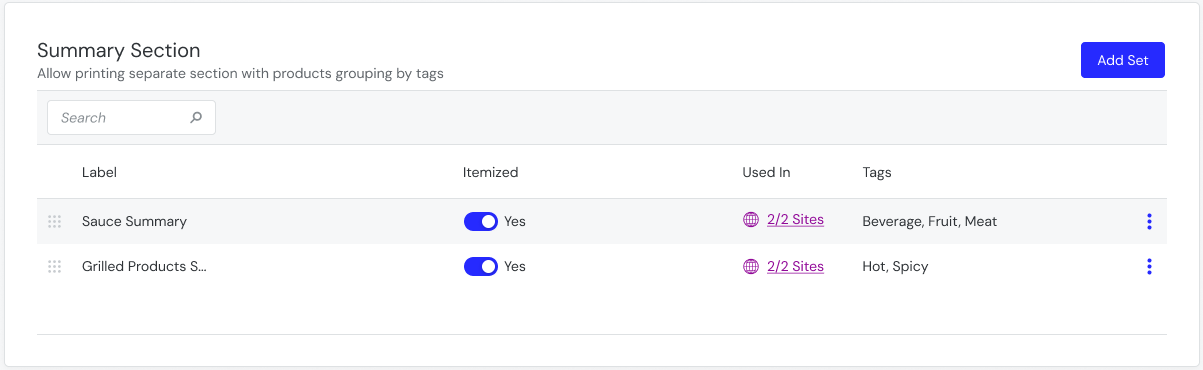
Include a Summary Section at the bottom of printed receipts to highlight specific items included in the order. You can optionally print each item on its own line -OR- print the total item quantity.
For example, print itemized sauce totals in the Summary Section to improve clarity for employees and guests.
Receipt Template Configuration
From Summary Section of Receipt Templates, create a summary section to include on receipts based on product tags. See Summary Section for more details.
 |
Note
The Summary Section is supported on the following template types: Bump Chit, Final Receipt, Guest Check, Kitchen, Receipt, TSR Receipt