4.1.61-x
2026-06-29 | 4.1.61-1 POS
The information provided below includes the user experience, process workflow, and infrastructure improvements and updates for this production version of POS API and UI.
Refer to change tickets: CHANGE-14782, CHANGE-14862, CHANGE-14926, CHANGE-14985, CHANGE-15052, CHANGE-15104, CHANGE-15153, CHANGE-15179, CHANGE-15200, CHANGE-15247, and CHANGE-15341 when speaking with a team member about this release.
New Features
PRMA-4163, POS-5336 | Age Restricted Products | Restrict purchase of specific products by age. Optionally prompt POS user to ask customer for ID and verify their birthdate when specific products are added to an order. Data Management Settings From the Availability → Restriction Age section of Product List and Modifier List, define the following:
From the Ordering Application → Ordering → Age Restriction section of Company/Site Preferences, define the following:
|
PRMA-4608, POS-56309, POS-56781, POS-56782 | Genius POS now supports UPC Type 2 barcodes, which are used to create product labels that POS users can scan to add the embedded Price or Weight to an order. | |
PRMA-6498, POS-55577, POS-55578, POS-55854, POS-56193, POS-56617 | Loyalty Functions on Customer Facing Display | Gift and Loyalty integrates with Customer Facing Displays (CFD). This enables the customer to engage with their Loyalty account from a CFD independent of the order entry process improving speed of service.
Data Management Setting
Digital Menu Board Configuration The Loyalty component is fully integrated with the point of sale (POS) data feed and adapts automatically based on configured loyalty settings and available identification methods. For configuration instructions: |
PRMA-6959, POS-55246, POS-55795, POS-55796 | Loyalty and Online Ordering | Gift and Loyalty integrates with Online Ordering. The POS user can check in, resume, cancel, or void Open orders associated with a Loyalty customer from Loyalty Lookup. Data Management Settings From the Loyalty → General Loyalty Settings section of Company/Site Preferences, define the following:
From the Ordering Application → Ordering section of Company/Site Preferences, define the following:
|
PRMA-7189, POS-1533, POS-40614, POS-56909, POS-56911, POS-56912 | From an Open Orders view, POS users can lookup and Check In Online Orders. The Check In process supports Paid, Unpaid, and fully discounted orders. |
Improvements
POS-47328, POS-56310 | Receipt Templates | Updated receipt template configuration to:
|
POS-56520 | End of Day (EOD) | Prevent EOD from running during an active Split Order session. |
POS-56560 | Auto Logon | Technical improvement to Post EOD and Data Sync to ensure Auto Logon function is persisted as configured. |
POS-56691 | Modifier Groups | Technical improvement to Refresh Data on iOS to ensure Modifier Groups marked inactive in Data Management are not active at the POS. |
POS-56698 | Customer Loyalty Rewards | To support internal Loyalty provider reports, POS now saves the external reference ID provided by Gift and Loyalty with the offer/reward. |
POS-56809 | Virtual Keyboard | Regardless of Shell screen setting, all Virtual Keyboard keys remain in their expected location. |
POS-56827 | Light / Dark Theme | When Dark theme is active, the POS Signature screen displays the signature in high-contrast white for optimal visibility. |
POS-57009 | Gift Cards | Technical improvement to SVS Gift Card functions when scanning card using MSR device. |
POS-57064 | Split Modify | Split Modify function is applicable to a specified quantity of a bundle component. |
POS-57080 | Table Number Assignment | Technical improvement to default table assignment if order destination does not require table selection. |
POS-57081 | Handheld Device | Technical improvement to display popup menu with full descriptions when user selects product from menu on handheld device. |
POS-57091 | Order Numbers | Technical improvement to address orders incorrectly marked as active and sent to the cloud without a valid Order ID. |
POS-57142 | Convert Item | Technical improvement to address missing order_item_id of child items when converting item with default build with quantifiable modifiers. |
POS-57176 | Android Technical Improvement | Product Options popup remains open as expected after user releases finger from long-press on product menus. |
POS-57212 | Installation | Technical improvement to upgrade POS/Shell on Moby device. |
POS-57258 | Expo Numbers | Technical improvement to ensure Expo Numbers are generated for every order regardless of Create Expo Number preference. |
POS-57467 | Floating Cash Drawers | User is prompted to resume floated cash drawer as expected after floating drawer and returning to order entry. |
POS-57482 | Logging | Implemented additional logging for employee drawer session events. |
POS-57546 | Device ID Logging | Technical improvement to use device UUID generated from Shell as context device ID in log messages. |
POS-57600 | Network Connectivity | Technical improvement to add fallback URL in case primary Heartbeat service is unreachable. |
PRMA-5487, POS-49573 | Discounts | When a Minimum Order Subtotal is defined for a discount, you can optionally exclude the price of discounted items from the subtotal when determining if an order meets the minimum subtotal qualification. Data Management Configuration From the Rules page of Discounts List, define the following for the discount:
This setting is only available when:
|
PRMA-6646, POS-54223, POS-55669 | Order Source Management | Order Source Management enables permissioned users to pause delivery partner integrations and remote channels for a specific amount of time. Updated POS to maintain status of Order Sources via XPL messages. |
PRMA-7007, POS-56354, POS-56646, POS-56653 | Handheld for TSR and Suite Catering | Table Service Restaurant (TSR) and Suite Catering functions are now supported on Handheld Devices.
|
Genius POS now supports UPC Type 2 barcodes, which are used to create product labels that POS users can scan to add the embedded Price or Weight to an order.
Select Barcode Format
From Company/Site Preferences in Data Management, select the preferred format for product barcode scanning.
Locate the General → Barcode Format section of Company/Site Preferences:
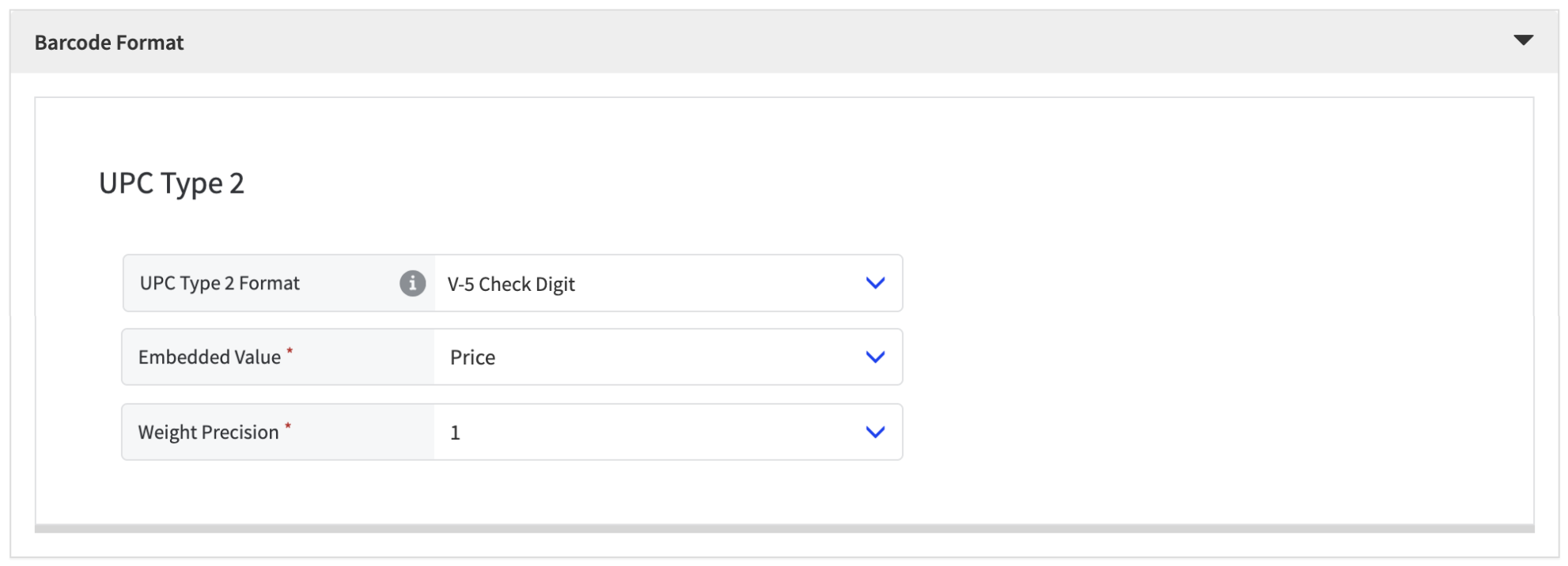 |
From the UPC Type 2 Format dropdown, select the preferred barcode format:
Format | Description |
|---|---|
None | Do NOT use UPC Type 2 barcode. |
5-Digit Value | Barcode begins with '02' or '2' followed by Product ID, then embedded Price or Weight. Define the following:
|
V-5 Check Digit | Barcode begins with '02' or '2' followed by Product ID, and embedded Price or Weight. A 7th digit is randomly generated. Define the following:
|
Flag + 4-Digit Value | Barcode begins with '02' or '2' followed by Flag that indicates if the embedded value is Price or Weight:
|
Set Up Product
From Product List in Data Management, set up a product for UPC Type 2 barcode scanning:
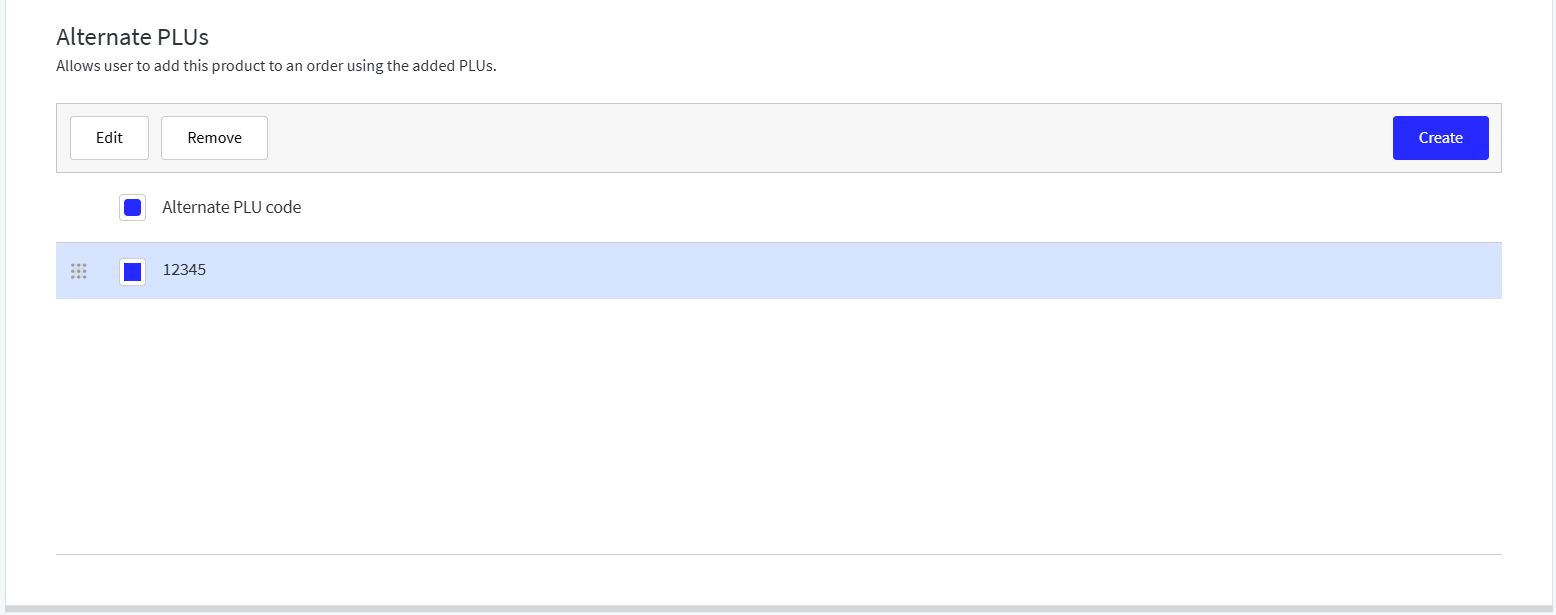
Add 5-digit PLU to match barcode
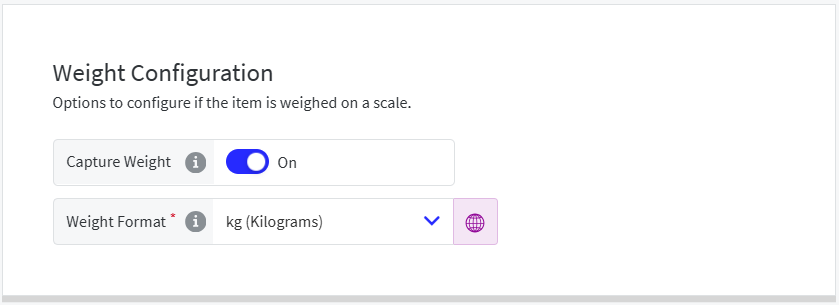
Enable weight capture
To add the product PLU:
From the Alternate PLUs section of the General page, select Create to add a 5-digit PLU that matches the barcode.
 |
To enable weight capture:
From the Weight page, toggle Capture Weight to On and select the applicable Weight Format.
 |
Note
For more information about Product List, see Create Product.