4.2.5-x
2026-10-26 | 4.2.5-1 Kitchen Management
The information provided below includes the user experience, process workflow, and infrastructure improvements and updates for this production version of Kitchen Management API and UI.
Refer to Change Tickets: CHANGE-15663, CHANGE-15743, CHANGE-15880, CHANGE-15940, CHANGE-16093, CHANGE-16116, CHANGE-16198, CHANGE-16253, CHANGE-16328, CHANGE-16443, and CHANGE-16470 when speaking with a Team Member about this release.
Improvements
PRMA-3153, XKM-5894 | Aggregate Child / Modifier Quantity | Configure Kitchen Screens and Printers to display aggregate child item and/or modifier quantities. Data Management Configuration Enable the following from the Display section of General Kitchen Settings:
|
PRMA-4490, XKM-7515 | Duplicate Name Notification | Kitchen respects the following Cell Header setting in Data Management:
Enable for individual screens from Cells → Cell Header of Kitchen Screen Settings. Enable for header templates from Layout of Header and Footer Templates. |
PRMA-5238, XKM-8203 | Print All Items on Bump Chit | Set up specific kitchen screens to print all order items on bump chits (including hidden items) instead of only the order items displayed on the screen. For example, the Expo screen displays all items except Beverages. You can configure the screen to include all order items, including Beverages, on the printed bump chit. Data Management Configuration Added following setting to Kitchen Screens → Printing tab → Print Kitchen Chit:
|
PRMA-6616, XKM-9947, XKM-10102 | The name and IP address of the printer used for Print On Demand is identified on the Peripherals tab of Station Status. | |
PRMA-7539, XKM-9897 | Specify the number of rows for kitchen screens in Row View, including a single row view. | |
PRMA-7597, XKM-10159 | Use compact spacing to reduce white space in kitchen cells. This optional configuration results in more orders on-screen, but reduces cell size. Not recommended for touchscreen environments. | |
PRMA-8012, XKM-10234 | Optionally consolidate like items by name on kitchen screens even items identified as independent products. This allows you to improve efficiency and order accuracy. | |
XKM-10107 | Split Order | Technical improvement to display items as expected on Kitchen display after order is split at the POS. |
XKM-10119 | Combined Orders | Technical improvement to address checks reappearing on display after combining orders. |
XKM-10120 | Claim Item | Only one item appears with Claim indicator when multi-quantity item is Shared at the POS. |
XKM-10141 | Bump Order | Technical improvement to address issue that prevented user from manually bumping order from display. |
XKM-10186 | Technical Improvement | Updated database purge rules to ignore:
|
XKM-9996 | Print On Bump | If no order content is displayed and the screen is not configured to print on bump, a receipt is not printed regardless of the trigger. |
Use compact spacing to reduce white space in kitchen cells. This optional configuration results in more orders on-screen, but reduces cell size. Not recommended for touchscreen environments.
Kitchen Screen Settings
Genius Portal → 4-Dot Menu → Data Management → Kitchen Settings → Kitchen Screen Settings → General
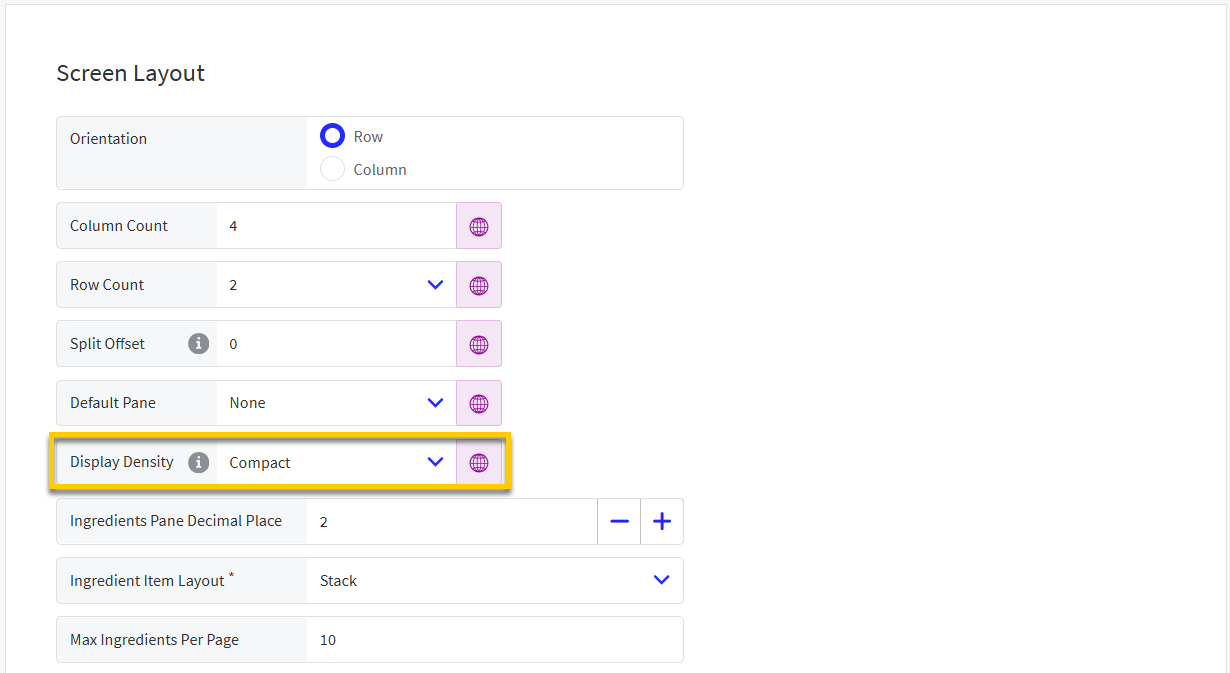 |
From the Screen Layout section of the General page, define the following:
Display Density - From the dropdown, select the preferred setting:
Standard - Use default vertical spacing for cells.
Compact - Use compact vertical spacing rules for cells, which results in more orders on-screen, but reduces cell size.
Optionally consolidate like items by name on kitchen screens even items identified as independent products. This allows you to improve efficiency and order accuracy.
If Alternate Kitchen Product Naming is defined for an item, the Alternate Name is used in the consolidation.
Items with a different Claimed/Completed status are not consolidated.
Kitchen Screen Setting
Genius Portal → 4-Dot Menu → Data Management → Kitchen Settings → Kitchen Screen Settings → Cells → Cell Body
From the Cells → Cell Body section, define the following setting:
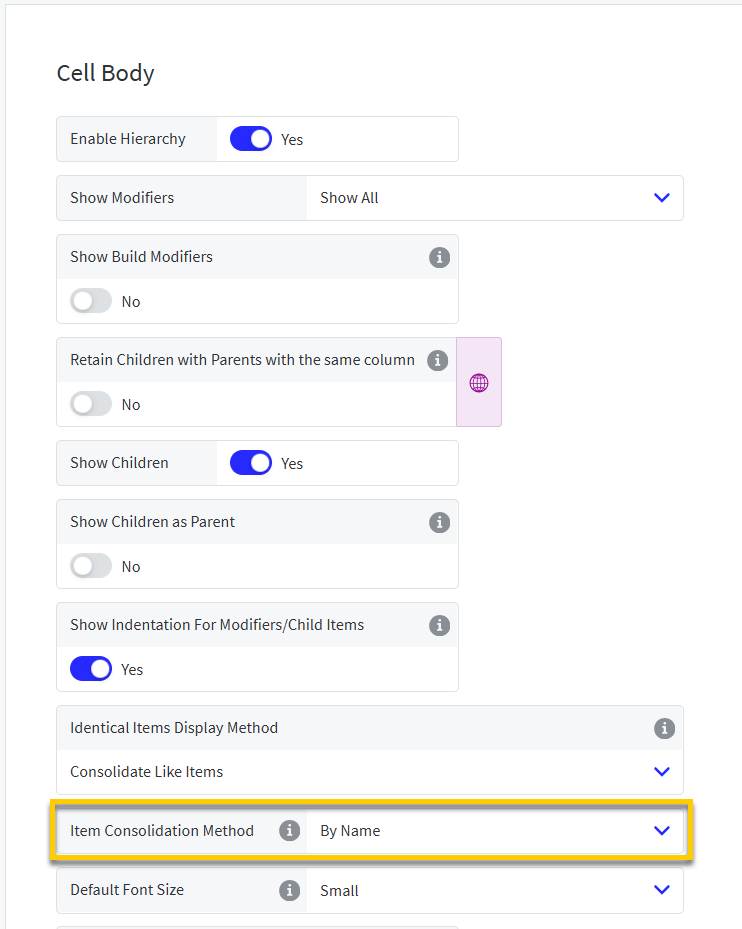 |
Item Consolidation Method - Select the preferred method:
By ID
By Name