4.1.50-x
2026-07-24 | 4.1.50-1 Kitchen Management
The information provided below includes the user experience, process workflow, and infrastructure improvements and updates for this production version of Kitchen Management API and UI.
Refer to change tickets: CHANGE-14550, CHANGE-14588, CHANGE-14896, CHANGE-15042, CHANGE-15156, CHANGE-15244, CHANGE-15376, CHANGE-15409, CHANGE-15490, and CHANGE-15577 and when speaking with a team member about this release.
Improvements
PRMA-5324, XKM-3052, XKM-5653, XKM-9432, XKM-9811, XKM-9812 | Order Ready Screen | The Order Ready Screen can display one (1) type of information to identify orders: Customer Name, Order Number, or Expo Number. From Kitchen Screen Settings in Data Management, set the display priority for each information type. From Order Information Priority on the General page, select and drag the control to the left of each information type to sort them in the preferred priority. If the information with the highest priority is not available, then the information with the next highest priority is displayed on the Order Ready Screen. When Show System Header & Footer is enabled from the Theme page of Kitchen Screen Settings, the popup menu in the Order Ready Screen footer includes the following:
|
PRMA-5520, XKM-8386, XKM-8750, XKM-9570, XKM-9688, XKM-9699 | Item Bump and Suppress Item | Item Bump and Suppress Item support order-level functions, including functions related to Upstream Screens, Ingredient/Summary Panels, and Print on Bump. Upstream Bump function is updated as follows: Once all parts of multi-quantity item is bumped from all upstream screens:
Once all order items are bumped from all upstream screens:
|
PRMA-5827, XKM-8634 | Enable alternate cell headers that are only used on a kitchen screen for specific Order Sources and/or Destinations. | |
PRMA-6616, XKM-9483 | You can print an order summary chit on demand from the kitchen cell super footer. When you print a chit on demand, Print On Bump is suppressed for that order to prevent duplicate chits. Optionally restrict screens to only print modifiers with specific tag assignments. | |
PRMA-7125, XKM-9859, XKM-9898, XKM-9899 | Include a Summary Section at the bottom of printed receipts to highlight specific items included in the order | |
PRMA-7196, XKM-9615, XKM-9891 | Added ability to only print a kitchen label for modified items when order is bumped. | |
XKM-10042 | IRIS POS Integration | Technical improvement to display items as expected on Kitchen display after order is split at the POS. |
XKM-9687 | Technical Improvement | Network socket behavior updates. Socket statistics now include FileServer and socket states. |
XKM-9804 | Claim / Complete Item Updates | The kitchen display color scheme for claimed/complete items is updated to match the color contrast used in previous versions and for improved usability. |
XKM-9861 | Print Templates | Updated Bump Chit template configuration to indent child items as expected. |
XKM-9884 | Technical Improvement | Technical Improvement for network communications between texters and iPads. |
XKM-9900 | Kitchen Schemes | Technical improvement when switching between Load Balanced scheme and Non Load Balanced scheme. |
XKM-9914 | Data Sync | Update to Cordova IP adapter and Data Sync controller to improve local network communication. |
XKM-9936 | Technical Improvement | Implemented rate limiter for service API to improve local network communication. |
XKM-9973 | Internet Connectivity | Technical improvement to internet and network status tracking and related notifications. |
Enable alternate cell headers that are only used on a kitchen screen for specific Order Sources and/or Destinations.
Cell Header Configuration
From Kitchen Screen Settings → Cells → Cell Header in Data Management, enable alternate header templates that are only used for specific order sources and/or destinations:
Toggle Enable Alternate Header Templates to Yes.
From Alternate Header Template, select Add Header Template.
From Template Name dropdown, select the template.
Select Add Conditions.
From Select Condition Type, select the Condition Type: Order Destination or Order Source
From Condition, select the applicable option:
Only the Following - Only use the template for the specified destinations/order sources.
Excluding the Following - The specified destinations/order sources do NOT use the template.
Select Add Order Sources or Add Order Destinations to select the specific order sources or destinations for the condition.
Note
To create a template, see Header and Footer Templates.
Include a Summary Section at the bottom of printed receipts to highlight specific items included in the order. You can optionally print each item on its own line -OR- print the total item quantity.
For example, print itemized sauce totals in the Summary Section to improve clarity for employees and guests.
Receipt Template Configuration
From Summary Section of Receipt Templates, create a summary section to include on receipts based on product tags. See Summary Section for more details.
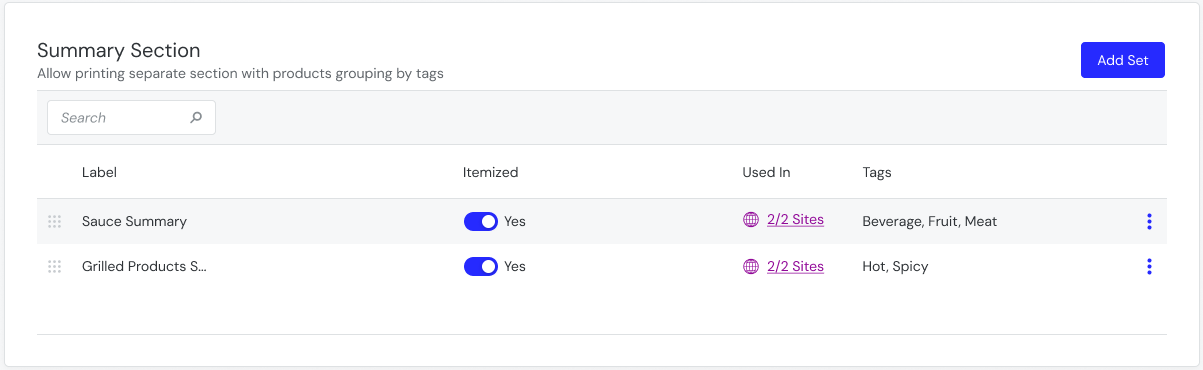 |
Note
The Summary Section is supported on the following template types: Bump Chit, Final Receipt, Guest Check, Kitchen, Receipt, TSR Receipt
Set up individual kitchen screens to print a label for modified items only when an order is bumped.
Reprint Label is available for Recalled orders regardless if order is manually bumped or autobumped.
Data Management Configuration
Configure the following from Printing → Print Item Label of Kitchen Screen Settings:
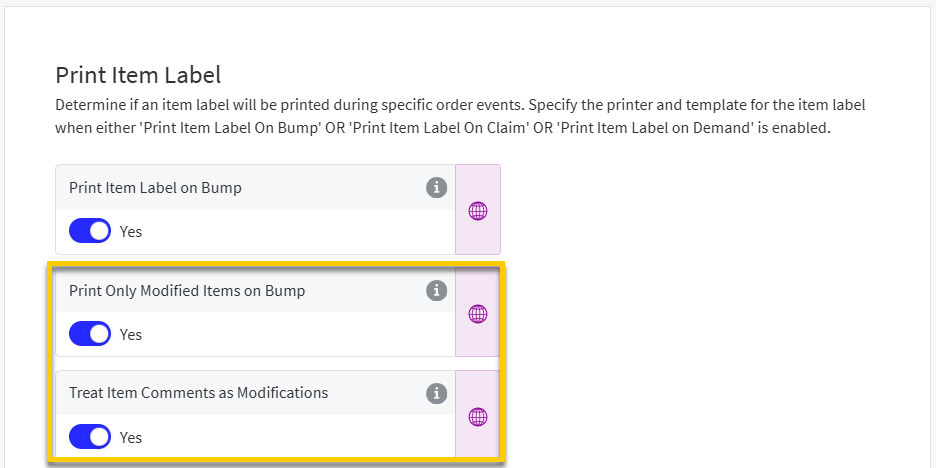 |
Print Only Modified Items on Bump - Print label on bump event only if the item has been modified.
This setting is only available when Print Item Label On Bump is enabled.
Treat Item Comments as Modifications - Item-level comments are displayed and formatted as item modifiers.
This setting is only available when Print Only Modified Items on Bump is enabled.