2026 April | Feature Highlights
Kitchen Management | Super Footer Configuration
PRMA-6511
The following describes new Kitchen Management config settings for the kitchen cell super footer used in Claim Item environments:
Enable/disable Claim All and Begin All buttons on super footer
Disable the super footer to conserve screen space
Affected Components:
Data Management
Kitchen Management
Data Management
From the Cells → Item Events section of Kitchen Screen Settings, define the following:
Setting | Description |
|---|---|
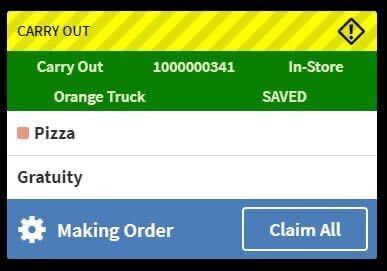
Enable Super Footer | Display two (2) footers: Making Order and Order Complete The Order Complete footer is displayed when all active order items are complete. |
Enable Claim All | Include Claim All button in super footer |
Enable Begin All | Include Begin All button in super footer |
Note
These settings are only available when Advanced Lifecycle is selected as the Item Tap Event.
Enable Claim All and Enable Begin All are only available when Claim and Begin Preparation on this Screen are added as Item Lifecycle Events, respectively.
Kitchen Management
Individual kitchen display cell footers are updated based on Data Management configuration.
 |
Kitchen Management | Deleted Items Enhancement
PRMA-6007
New settings to display items as a Deleted Item when the quantity is reduced on an order and to save orders when it is totaled.
Affected Components:
Data Management
Genius Point of Sale (POS)
Kitchen Management
Data Management
Enabled display of deleted items for reduced item quantity by adding new toggle setting Persist Deleted Items when Quantity is Reduced to Kitchen Screen Settings.
Portal → 4-Dot Menu → Data Management → Kitchen Settings → Kitchen Screen Settings
Configure the following settings from the Cell Body section of the Cells page of the Kitchen Screen Settings editor.
The settings are only available when Show Deleted Items is toggled Yes.
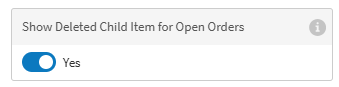
Persist Deleted Items when Quantity is Reduced - If toggled Yes, when an item quantity is reduced, the quantity reduction is identified by displaying item deletions on the screen.
If toggled No, when an item quantity is reduced, the item deletions are NOT displayed on the screen.
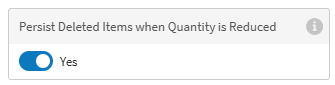
Show Deleted Child Item for Open Orders - If toggled Yes, when a child item’s quantity is reduced from an Open order, the quantity reduction is identified by displaying item deletions on the screen.
If toggled No, when an item quantity is reduced, the item deletions are NOT displayed on the screen.
New setting Save Order on Total to automatically save an order when it is totalled
→ → → → → → → →

Genius Point of Sale (POS)
Improve deleted Items record for child items and modifiers
Deleted items can not be combined in a pending order when option Show Deleted Child Item for Open Orders is enabled
Kitchen Management
Added settings to display deleted items when item quantity is reduced.
Kitchen Management | Kitchen Emphasis Tags
PRMA-6631
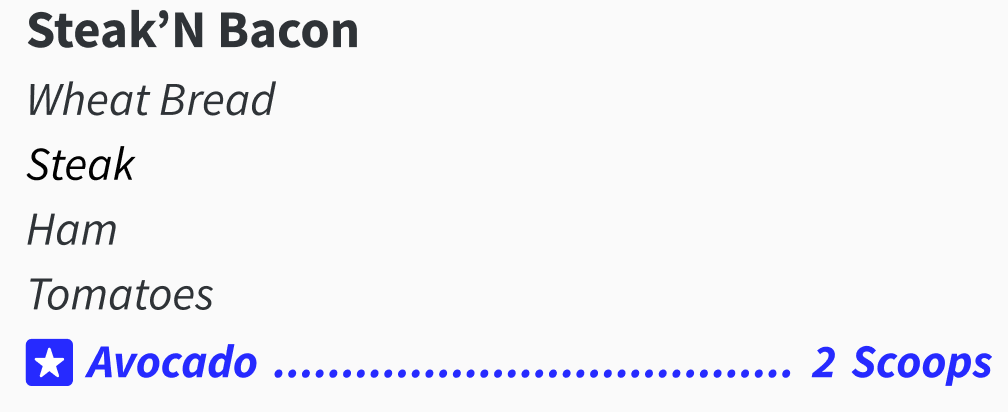
Added the ability to tag additions to items with a special treatment as a Kitchen Emphasis on the Kitchen screen. Tag indication can be configured from Data Management to allow for easy identification.
This enhancement aims to improve the ordering experience for customers by making premium add-ons more visible on the Kitchen Display System (KDS). Premium ingredients, such as bacon or avocado are highlighted using bold text and a star icon, ensuring they stand out.
Affected Components:
Data Management
Kitchen Management
Data Management
Enhanced Premium Tag display and functionality with the following actions:
Add new Kitchen Emphasis usage type to create/edit Tag entity form
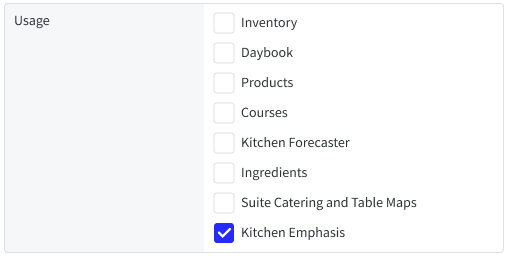
When Kitchen Emphasis usage type is selected, new setting Kitchen Emphasis Color displays with colorpicker and default value options

Add new dropdown setting Show Emphasis Tags to Kitchen Screen Settings
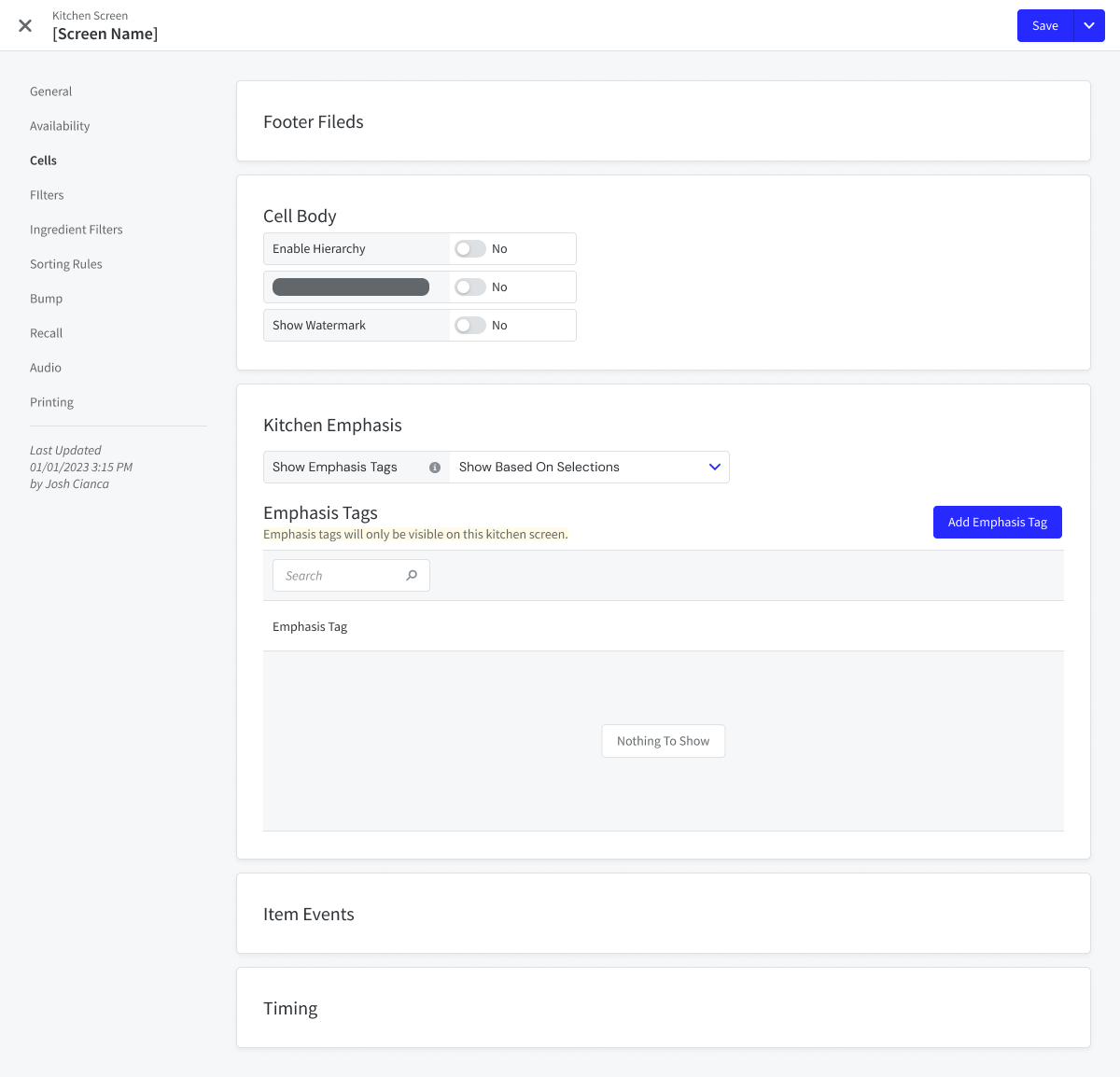
Kitchen Management
Use Emphasis Tags to highlight or emphasize specific modifiers on select kitchen displays.
 |
Online Ordering | Menu User Interface
PRMA-6066
Added the ability for admins to verify menu creation from Portal to review for quality control. Menus can be filtered by Time Range or Input Field.
Affected Components:
Cloud Portal
Online Ordering
Cloud Portal
Enabled access control of viewing Menu Validator page and menu download with new menu_validator.View permission at global and company levels. Permission is within new permission group Platform Services containing sub-sections Log Viewer, Data Mapper, Record & Play, Menu Validator.
Online Ordering
Added new endpoint /v1/menu-status/list to retrieve latest menu updates. New menu status object field menu_creation_timestamp displays time menu creation ended processing.
New GET endpoint provides details about latest Menu updates.
Online Ordering | Reset Site Cache
PRMA-6970
Added the ability to automatically reset the cache of Online Ordering cache upon each update from Cloud Portal and Data Management.
Affected Components:
Data Management
Online Ordering
Data Management
Added site/company preferences updates to the Platform Events.
Online Ordering
Cache resets for specific site updates apply only to specified company and site as expected.
Genius Point of Sale (POS) | Expo Numbers Across Terminals
PRMA-6434
When generating expo numbers for guest orders, there are two (2) options:
Option | Description | Example |
|---|---|---|
Per Terminal (Default) | Generate sequential expo numbers specific to each terminal. The expo number is appended to the terminal number. |
|
Shared | Generate sequential expo numbers across all active terminals at the site. |
|
Optionally generate unique expo numbers for orders with specific destinations. | In this example, unique sequential expo numbers are generated for the Drive Thru destination.
|
Affected Components:
Data Management
Genius Point of Sale (POS)
Portal
Data Management
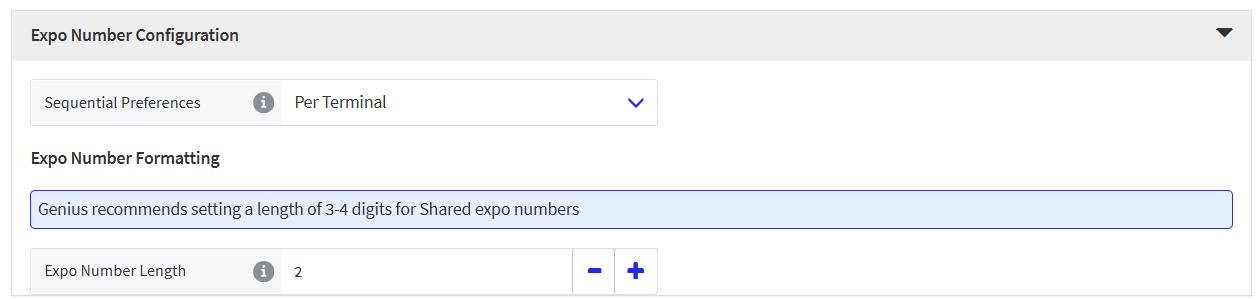
From the General → Expo Number Configuration section of Company/Site Preferences, set up how sequential expo numbers are generated at the POS.
Sequential Preference: Per Terminal
 |
To generate sequential expo numbers at each terminal:
Setting | Description |
|---|---|
Sequential Preference | From the dropdown, select Per Terminal. |
Expo Number Length | Specify the number of digits to include in the expo number. |
Sequential Preference: Shared
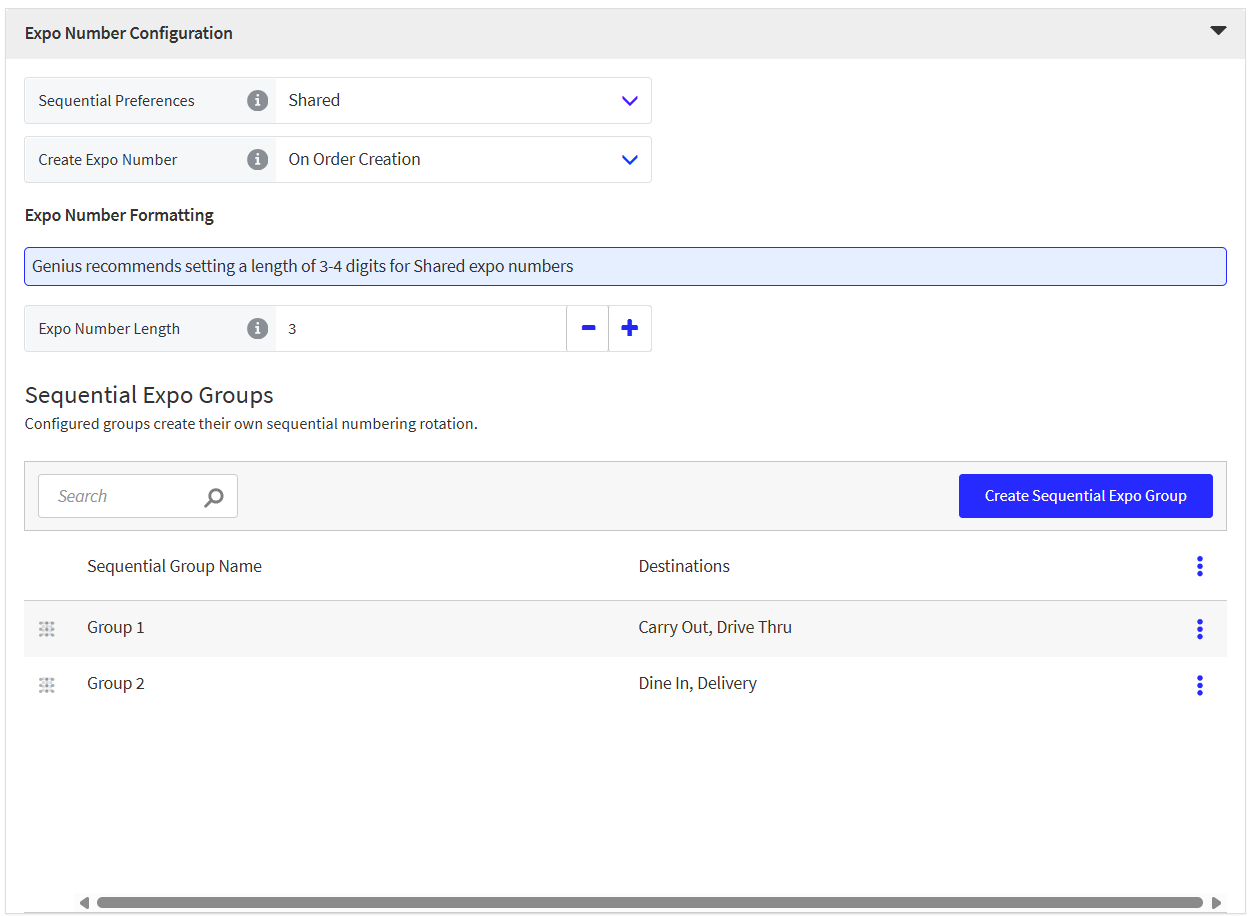 |
To generate sequential expo number across all terminals:
Setting | Description |
|---|---|
Sequential Preference | From the dropdown, select Shared. |
Create Expo Number | Select the preferred stage of the order cycle to generate the expo number:
|
Expo Number Length | Specify the number of digits to include in the expo number. In a Shared environment, a length of 3-4 digits is recommended. |
Sequential Expo Groups
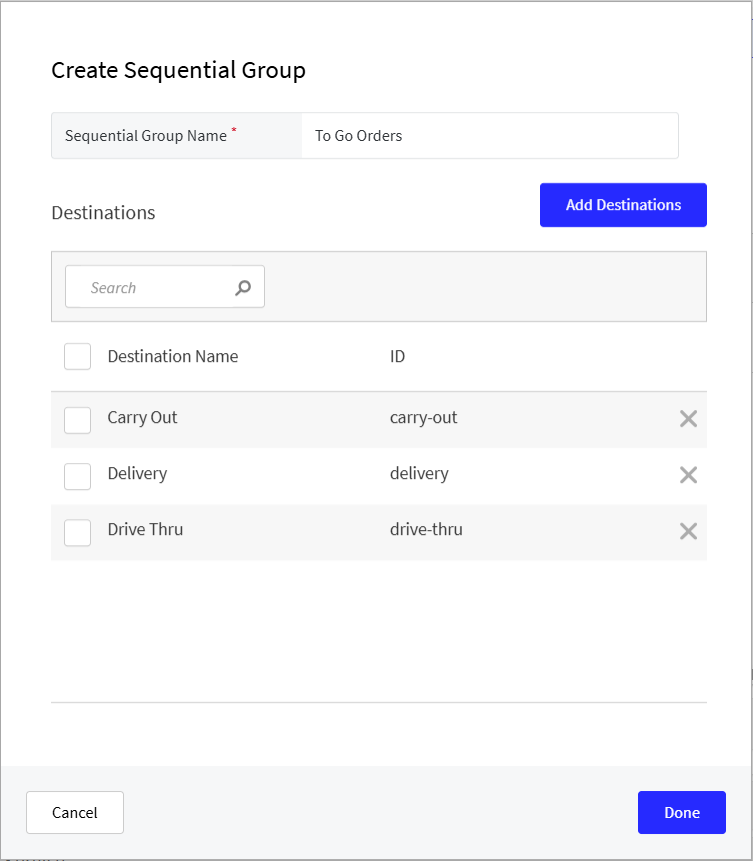
In a "Shared" expo number environment, you can create groups to generate unique sequential expo numbers for orders with specific destinations.
From the Sequential Expo Groups section of Expo Number Configuration, select Create Sequential Expo Group.
In the Sequential Group Name field, type a name for the group.
Select Add Destinations.
From Add Destinations, select the order destination(s) to add to the group.
In the following example, the To Go Orders group contains three (3) order destinations: Carry Out, Delivery, and Drive Thru.
Note
An order destination cannot be added to more than one (1) group.
Portal
Permission | Key | Description |
|---|---|---|
Edit Expo Number Rules | preferences.exponumber.manage | Allow updating Expo Number Rules to setup Sequential Numbering. |
Genius Point of Sale (POS) | Product Variation Sequences
PRMA-6502
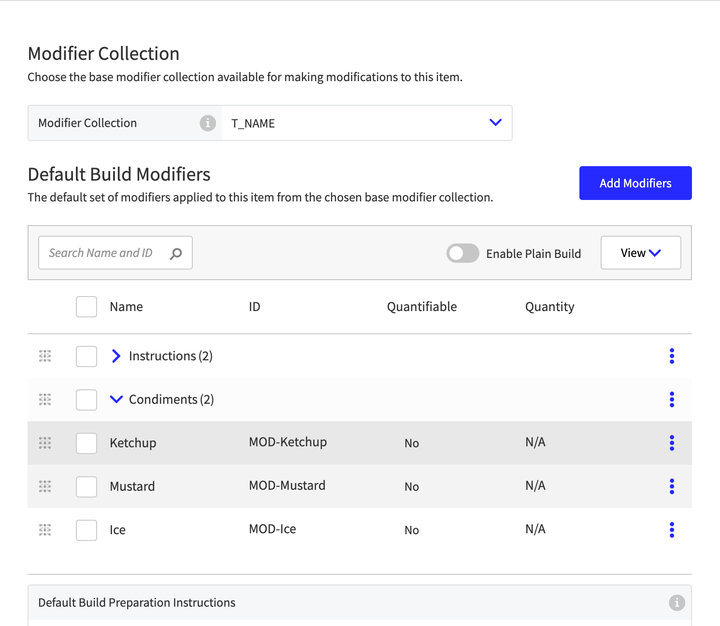
Added the ability to set the order of Product Variations
Affected Components:
Data Management
Genius Point of Sale (POS)
Online Ordering
Data Management
Added the ability to set the order of Product Variations within product by dragging and dropping the modifier in the Default Build Modifiers list.
 |
Genius Point of Sale (POS)
The order of Product variations can now be set from Data Management.
Online Ordering
Enabled delivery partners to view and sort Product Variations by consuming sort_order field in variation_info object for each product.
Portal | Audit Trail Activity Feed
PRMA-1991
Enhanced activity feed of the Audit Trail feature, enhancing the visibility of actions taken within the site.
Affected Components:
Data Management
Portal
Data Management
Added Cart entity ID transaction_group_id ito Data Management.
Portal
Integrated Change History UI into Portal UI.
Enhanced Queue Processor to eliminate processing audit records for companies whose company_id is in SKIP_COMPANY_IDS array in environment variable or which has allow_cleanup: true.
Enabled viewing of Audit Trail data by adding new permission ChangeHistory.Admin.View for administrator roles at global level.
Enhanced management of Change History capability by adding new subgroup Change History with new permission View Change History (ChangeHistory.View) at company and global levels.
Enhanced usability by disabling View Change History (ChangeHistory.View) permission by default.
Portal | Prevent Production/Lab Site Creation Without a CaseSafe ID
PRMA-6484
Added the ability to prevent production/lab site creation without CaseSafe ids on Production
Affected Components:
Portal
Portal
Made Salesforce CaseSafe IDs required fields for Production/Lab site creation.
Enhanced administrative control for Production/Lab creation by adding new permission Admin.ProdLabSites.Create at global level.
Staff | Upgrade and Migrate Core UI and Staff UI
PRMA-6648
Migrated Core and Staff UI functionality to Angular 4 and updating Angular CLI to version 5 to improve functionality.
Affected Components:
Staff
Suite Catering | FreedomPay Certification
PRMA-6258
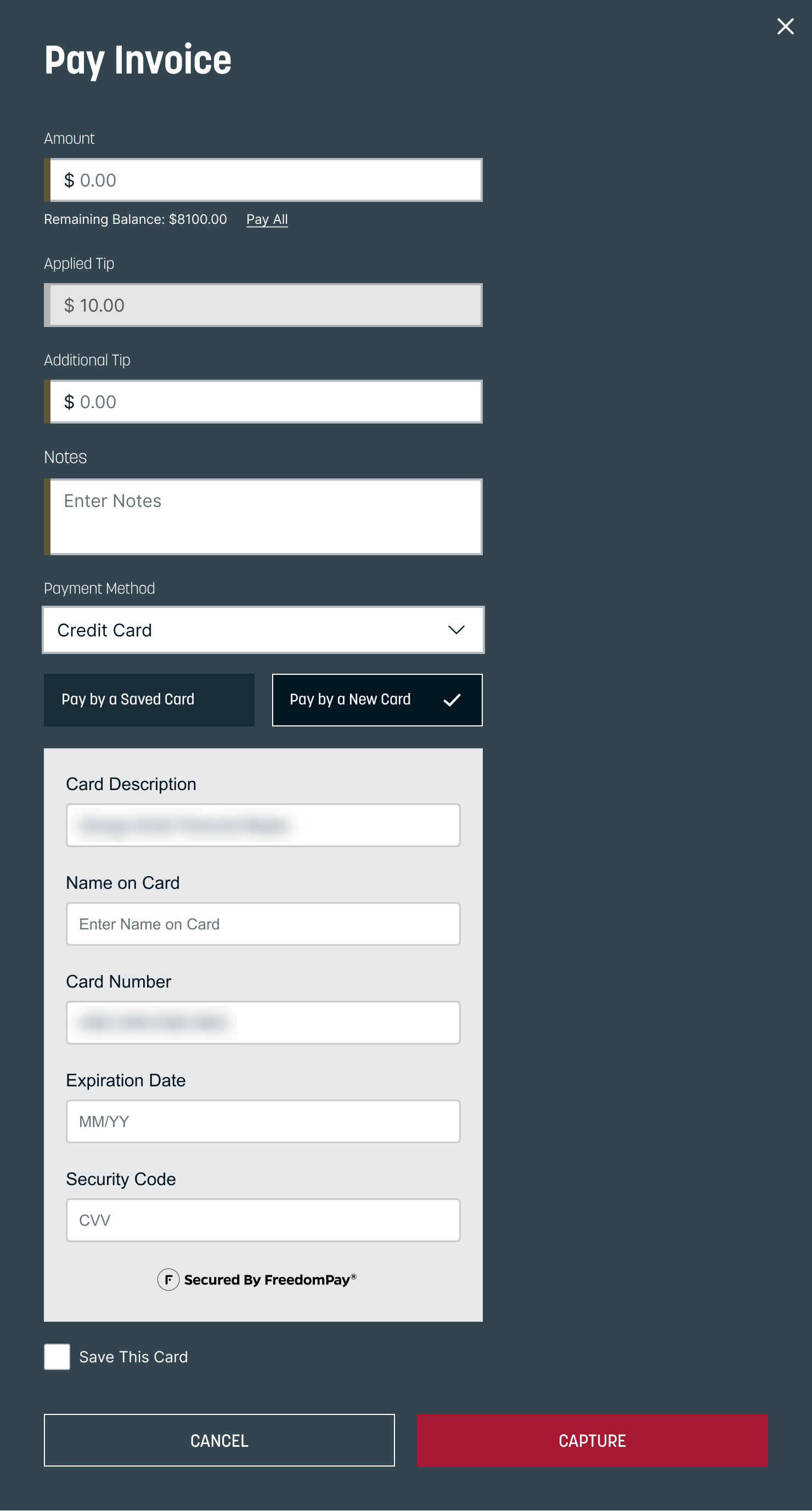
Updated Invoice payment flow to support for FreedomPay UK.
Affected Components:
Suite Catering
Suite Catering
Added dropdown options to select either Credit Card or Gift Card pay options on Pay Invoice screen.
Credit Card
Gift Card
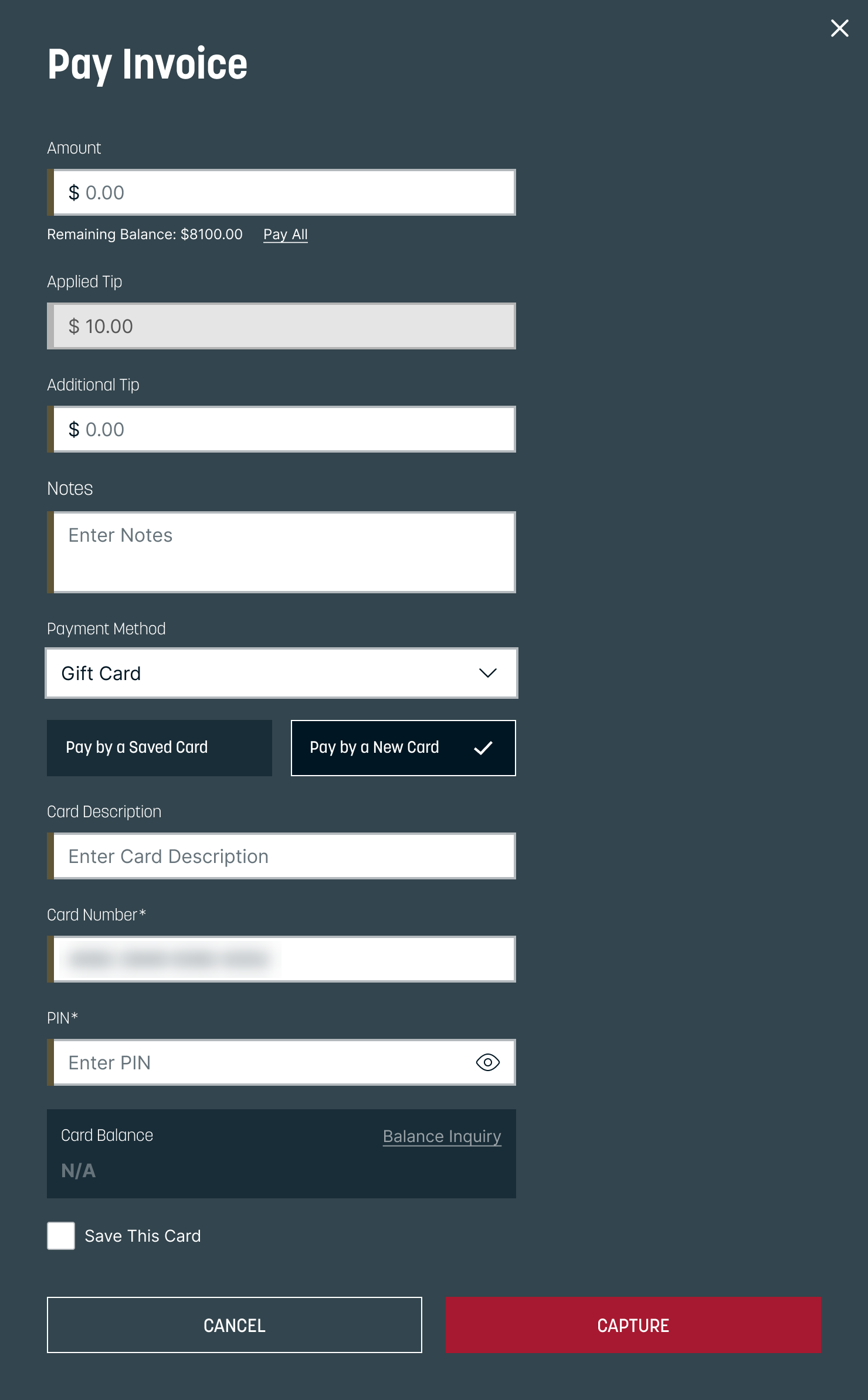
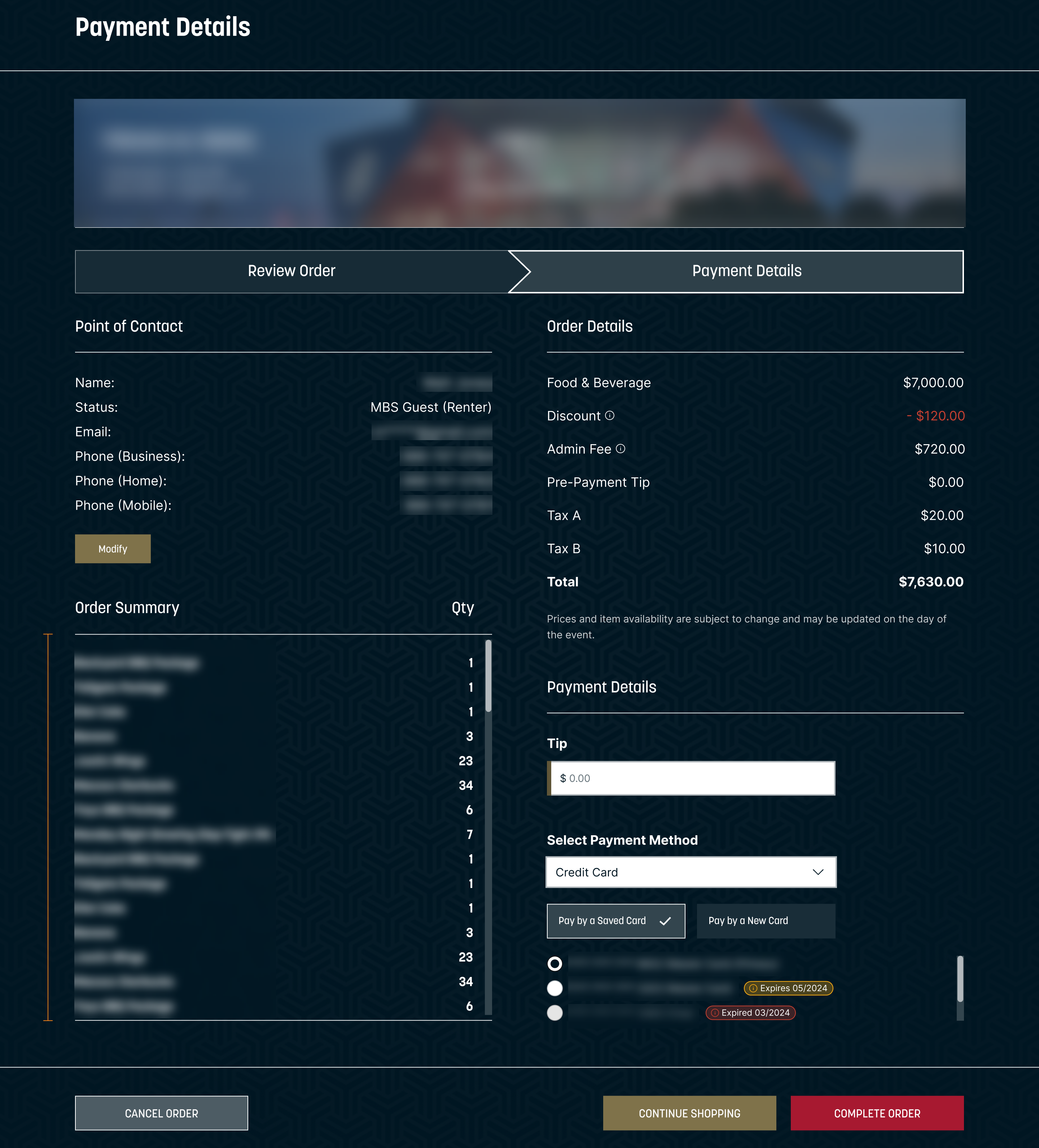
Updated layout Payment Details page with the following:
Moved Point of Contact to left side of screen
Move Credit Card information is now located at the lower-right of the screen
Updated Complete Order sequence to the following: Create Order → Pre-auth card with order amount + tip → Process payment → Close & Commit