Mobile Ordering Check In
The Foodservice Management (FSM) Portal allows the configuration of Near Field Communication (NFC), Beacon, and QR Code check ins for mobile ordering. Each configuration topic listed below includes its own set of steps:
Step | Topic | Description |
|---|---|---|
1 | Prerequisite steps for Beacon Check In only. | |
2 | Steps to configure Order Management for NFC, QR, and Beacon check ins. | |
3 | Steps to configure System Text Editor for NFC, QR, and Beacon check ins. | |
4 | Additional steps for NFC check in. | |
5 | Additional steps for QR Code check in. | |
6 | Additional steps for Beacon check in. |
Prerequisites
Beacon Check In requires that a beacon be added in the FSM Portal prior to Order Management configuration. NFC Check In and QR Code Check In have no prerequisites.
Beacon Check In
To add a beacon:
→ →
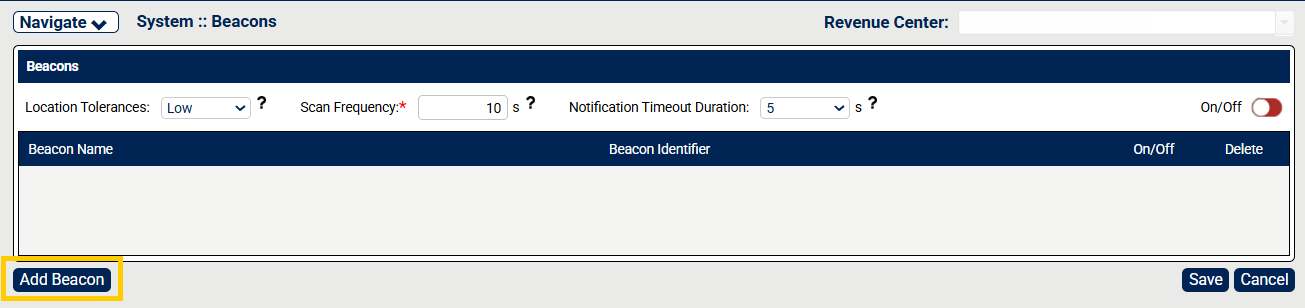
From the lower-left corner of Beacons, select Add Beacon.
From Add Beacon, enter the Beacon Name in the text field.
From Add Beacon, enter the Beacon Identifier in the text field.
Note
The Beacon Identifier can be used for one beacon only.
From Add Beacon, toggle On the On/Off field to activate the beacon.
From the lower-right corner of Add Beacon, select Save to save the beacon.
Screen Captures
FSM Portal - Beacons Landing Page |
| |
FSM Portal - Add Beacon |
|

Configure Order Management
→ → → → →
To configure Order Management for mobile ordering check in:
From Revenue Centers, select Open next to the Revenue Center name.
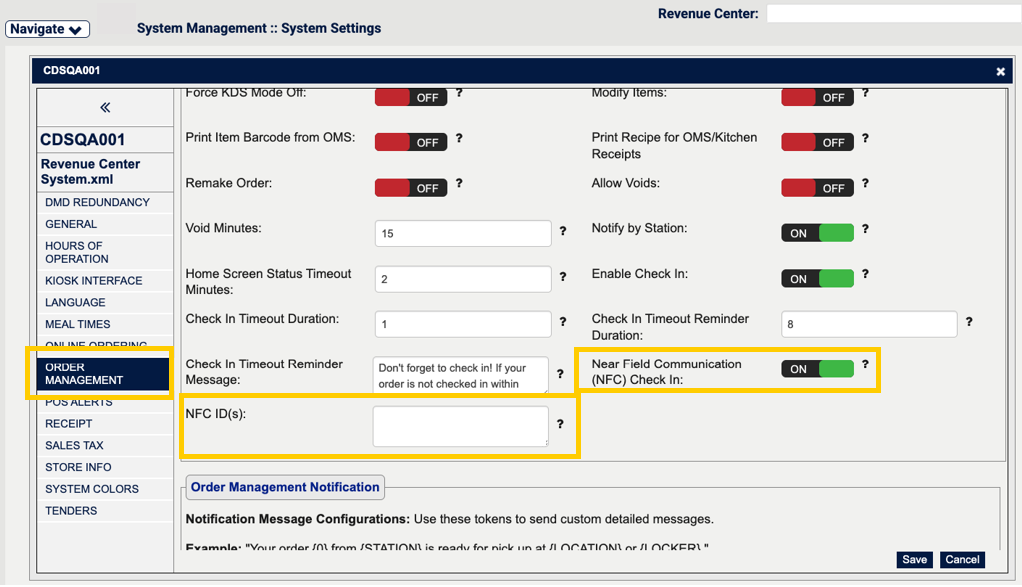
From the left navigation pane for the Revenue Center page, select Order Management.
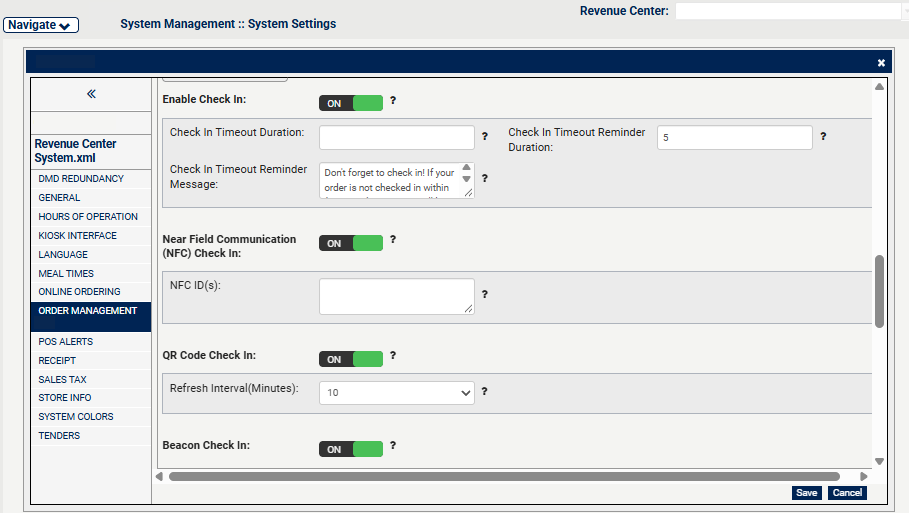
From Order Management, add the following settings:
Near Field Communication (NFC) Check In
NFC ID(s)
From Order Management, toggle On the Enable Check In field.
From Order Management, toggle On the Near Field Communication (NFC) Check In field.
Note
The Enable Check In field must be set to On to enable the Near Field Communication (NFC) Check In field.
From Order Management, enter the NFC IDs in the NFC ID(s) text field.
Note
If entering multiple NFC devices, separate NFC IDs with a semicolon. E.g. 12345;67890.
Do not include special characters such as link breaks, which cause NFC IDs to be scanned incorrectly.
From Order Management, toggle On the QR Code Check In field.
From Order Management, select the refresh option from the Refresh Interval(Minutes) dropdown. This setting determines how often the QR Code refreshes dynamically.
From Order Management, toggle On the Beacon Check In field.
From Order Management, select Save in the lower-right corner to save the changes.
From System Management, select Publish.
From Publish, select Publish Now to publish immediately or Publish Later and select an effective time to publish the changes.
From Publish, select OK to save the Publish settings.
From Publish, select Continue to return to the System Management landing page.
Screen Captures
NFC Check In Order Management Settings |
| |
Order Management - Enable Check In, NFC Check In, QR Code Check In, Beacon Check In |
|
Configure System Text Editor
→ → →
To configure System Text Editor for mobile ordering check in for NFC Check In and QR Code Check In, and Beacon Check In:
From System Text Editor, select BASE from the PCID dropdown and select Order Tracking Statues from the Navigate to dropdown.
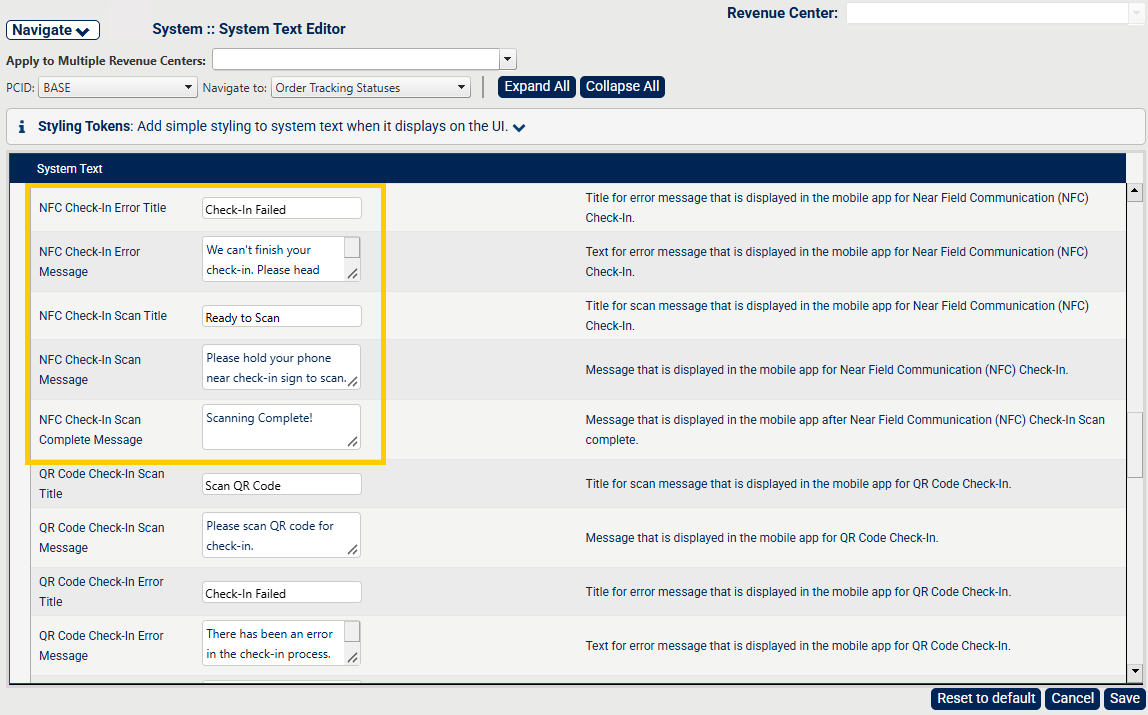
From System Text Editor under Order Tracking Statues, add the following items to configure NFC Check In text for the mobile application:
System Text Field Name
Entry Type
Buttons
NFC Check In Scan Title
Text Entry
Example: Ready to Scan
NFC Check In Scan Message
Text Entry
Example: Please hold your phone near the check-in sign to scan.
Return button < on the scanning background screen to return to the previous page.
Close button X / Cancel on the scanning progress screen to close the scanning sheet and stay on the scanning background screen.
NFC Check In Error Title
Text Entry
Example: Check In Failed!
NFC Check In Error Message
Text Entry
Example: We can't finish your check-in. Please head over to the store counter, and our staff will help you check in. Thank you!
OK button: After the user selects OK, the application remains on the current page.
NFC Check In Scan Complete Message
Text Entry
Example: Scanning complete.
NFC Check In Method Title
Text Entry
Example: Tap to Check In
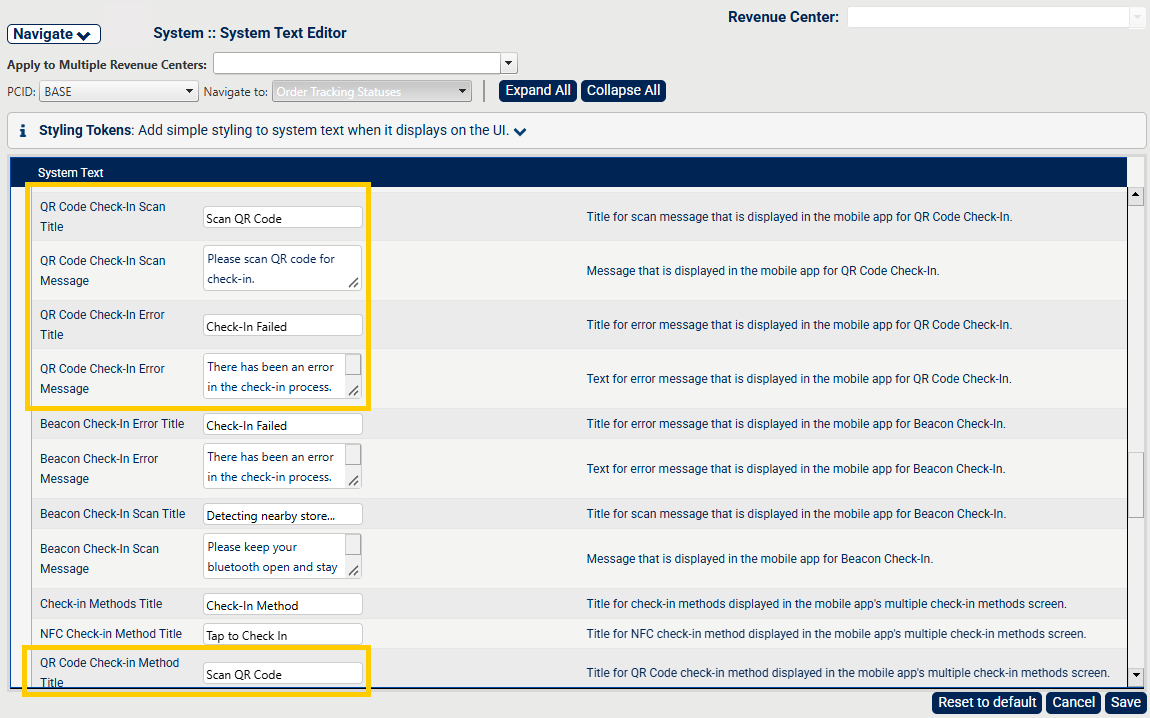
From System Text Editor under Order Tracking Statues, add the following items to configure QR Code Check In text for the mobile application:
System Text Field Name
Entry Type
Buttons
QR Code Check In Scan Title
Text Entry
Example: Scan QR Code
QR Code Check In Scan Message
Text Entry
Example: Please scan QR Code for check in.
QR Code Check In Error Title
Text Entry
Example: Check In Failed!
QR Code Check In Error Message
Text Entry
Example: There has been an error in the check in process.
QR Code Check In Method Title
Text Entry
Example: Scan QR Code
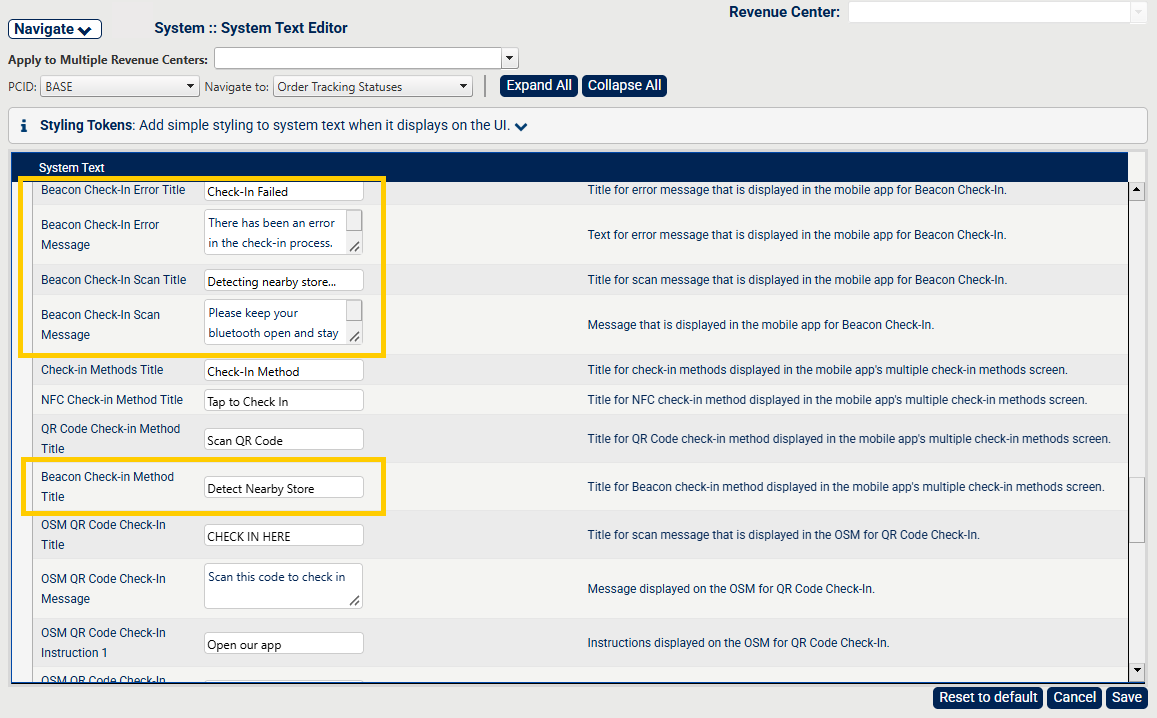
From System Text Editor under Order Tracking Statues, add the following items to configure Beacon Check In text for the mobile application:
System Text Field Name
Entry Type
Buttons
Beacon Check In Scan Title
Text Entry
Example: Detecting nearby store...
Beacon Check In Scan Message
Text Entry
Example: Please keep your Bluetooth open and stay.
Beacon Check In Error Title
Text Entry
Example: Check In Failed!
Beacon Check In Error Message
Text Entry
Example: There has been an error in the check in process.
Beacon Check In Method Title
Text Entry
Example: Detect Nearby Store
From the lower-left of System Text Editor, select Save.
From the lower-right of System, select Publish to publish the updates to the system.
Screen Captures
System Text Editor - NFC Check In settings |
| ||
System Text Editor - QR Code Check In settings |
| ||
System Text Editor - Beacon Check In settings |
|

Additional NFC Check In Configuration
After completing the Order Management configuration, the mobile applications behave in the following ways depending on the Portal settings:
Setting Configuration | Application Steps |
|---|---|
When Check In is enabled, but NFC Check In is disabled in the Foodservice Management Portal | Users select the Check-In button and proceed to the Check-In confirmation page directly. |
When both Check In and NFC Check In are enabled in the Foodservice Management Portal | Incorporate an additional NFC scan and verification process into the existing check-in flow:
|
Additional information about the NFC scan system behavior between iOS and Android:
Action | Android Behavior | iOS Behavior |
|---|---|---|
When a user taps the Check-In button. | An unsupported alert appears on the current page. | An unsupported alert appears on the current page. |
Check NFC access permission on the user's device. | If NFC is disabled, an Enable NFC in settings alert appears on the current page when a user taps the Check-In button. | The Enable NFC in settings alert appears on the next page. |
The NFC scan process. | The NFC scan process continues indefinitely until canceled. | The NFC scan process times out after one minute. |
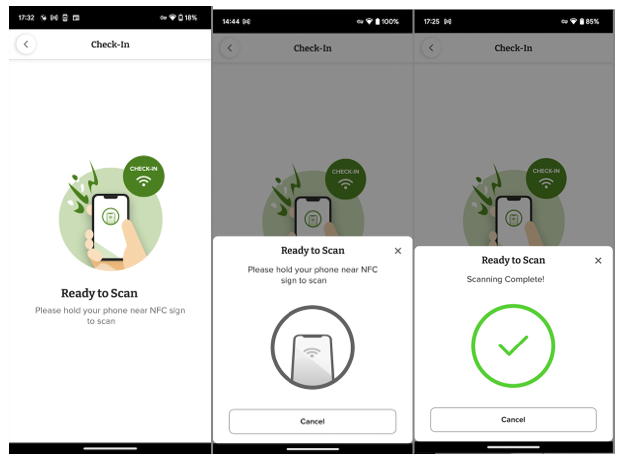
After successful NFC check-in. | The NFC Scan Complete drawer disappears upon navigating to the next page. | The complete drawer persists for approximately two (2) seconds after navigating to the next page unless it is canceled manually by tapping the Cancel button on the drawer. |
Screen Captures
NFC Ready to Scan Android |
| |
NFC Ready to Scan iOS |
| |
NFC is Turned Off Android | 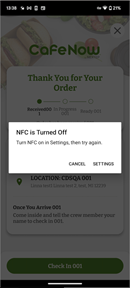 | |
NFC is Turned Off iOS | 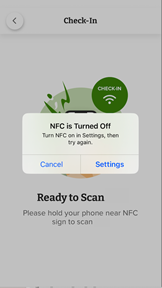 |
Additional QR Code Configuration
Important
The following configuration steps are for locations with Genius Pro theme.
To configure digital menu display (DMD) for QR Code mobile check in:
→ → →
From DMD, select Add Content.
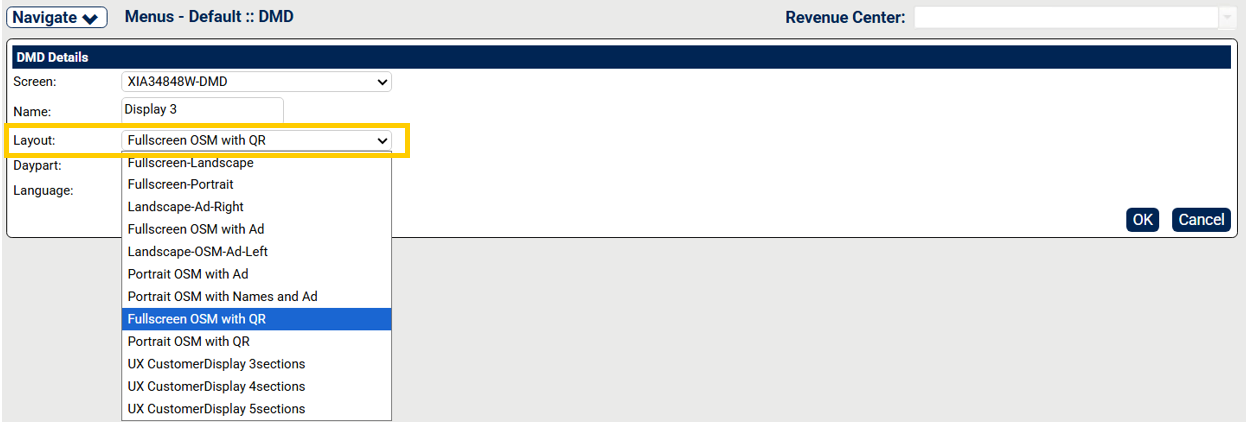
From DMD, select Fullscreen OSM with QR from the Layout dropdown.
From the lower-right of DMD, select OK.
From DMD, select Add Content and select Portrait OSM with QR from the Layout dropdown.
From the lower-right of DMD, select OK.
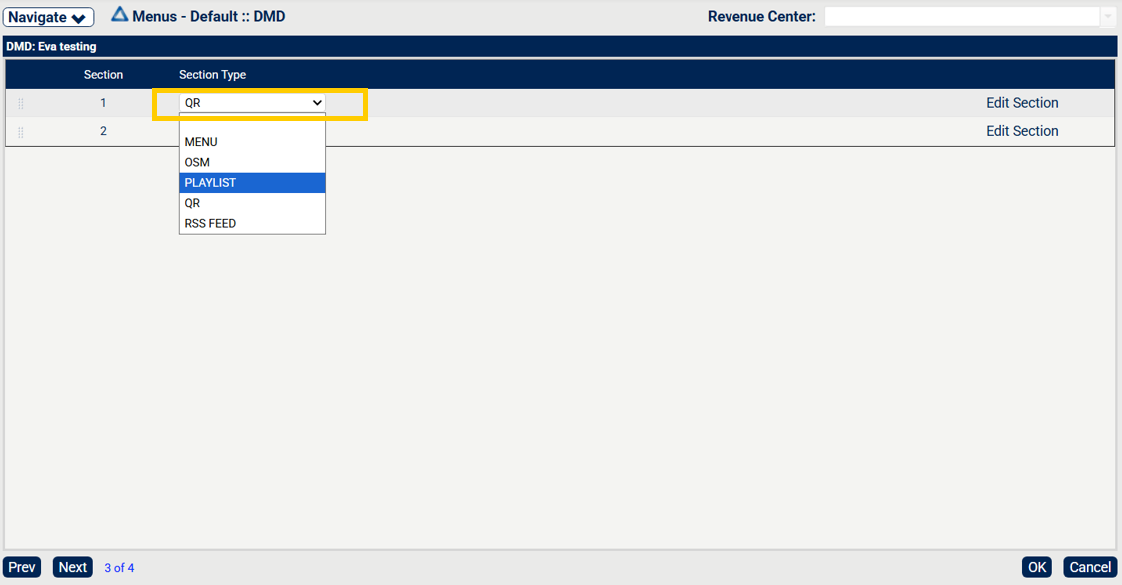
From DMD, select Edit Sections for Fullscreen OSM with QR and select QR from the Section Type dropdown.
Note
The device resolution should be 1280 x 720 for Landscape.
From the lower-right of DMD, select OK.
From DMD, select Edit Sections for Portrait OSM with QR and select QR from the Section Type dropdown.
Note
The device resolution should be 720 x 1280 for Portrait.
From the lower-right of DMD, select OK.
From the lower-right of DMD, select Save to save the changes.
From the lower-right of DMD, select Publish to publish the changes to sites.
From the Portal, navigate to → → → .
From System Text Editor, select BASE from the PCID dropdown and select Order Tracking Statues from the Navigate to dropdown.
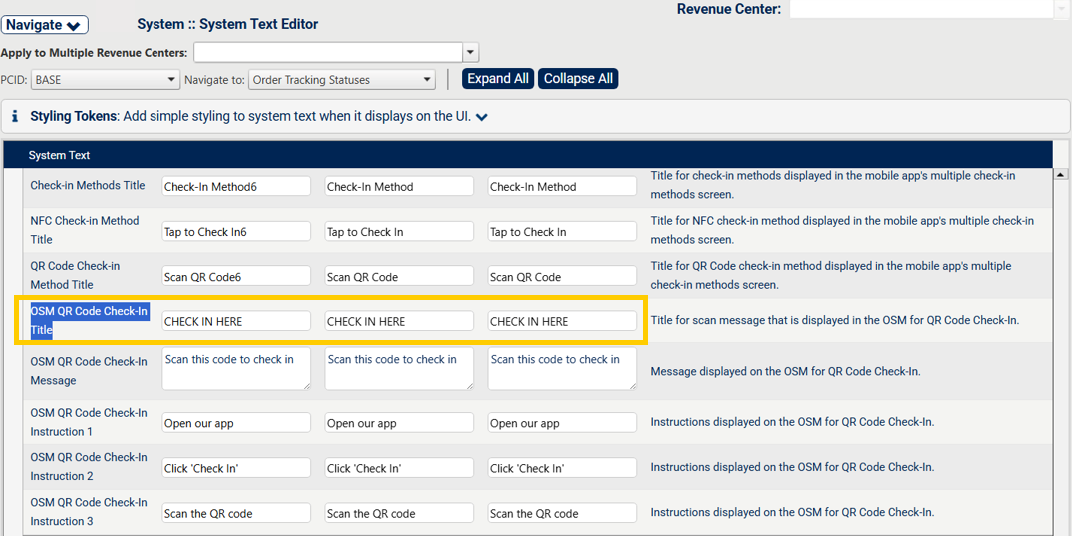
From System Text Editor under Order Tracking Statues, configure OSM QR Code Check In Title fields. For example, enter Check In Here in the text field.
From the lower-left of System Text Editor, select Save.
From the lower-right of System, select Publish to publish the updates to the system.
Screen Captures
DMD - Layout dropdown |
| |
DMD - Edit Section |
| |
Order Management - Order Tracking Statues - OSM QR Code Check In Title |
| |
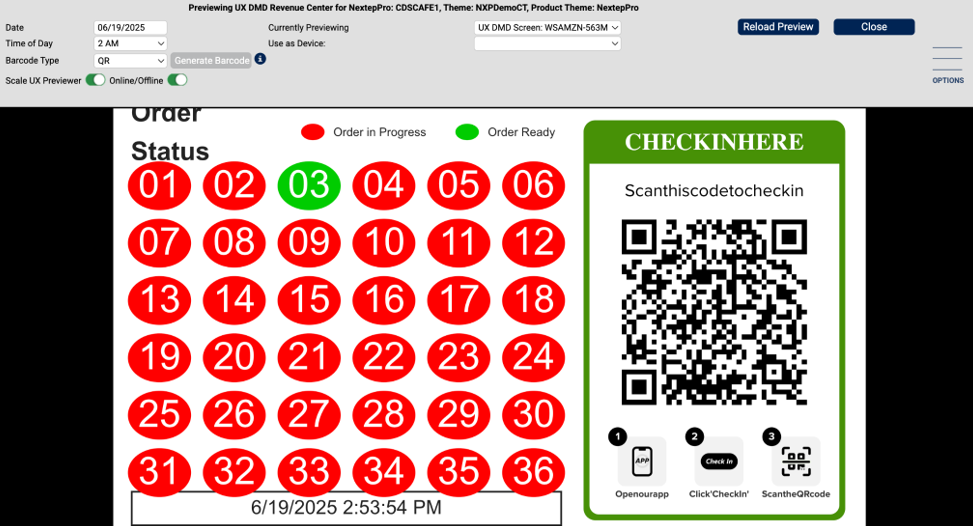
DMD Preview - Fullscreen |
| |
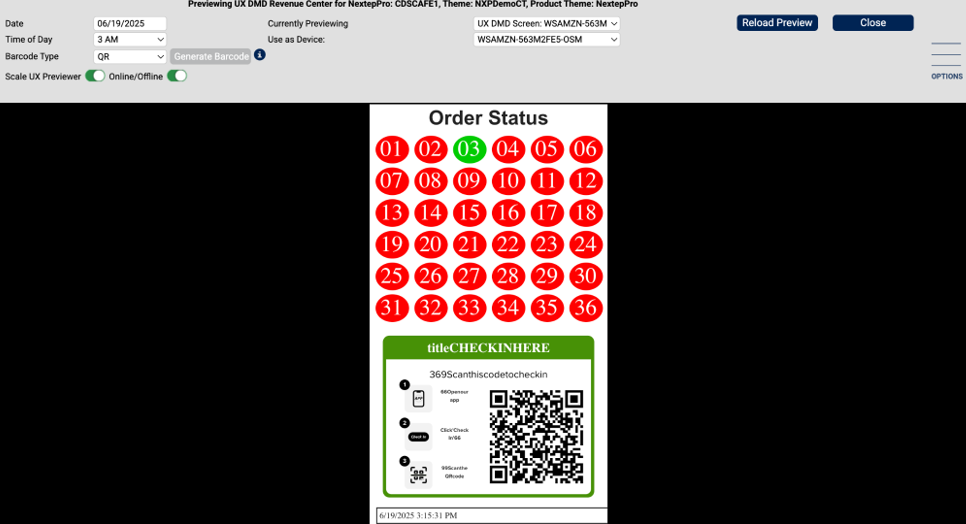
DMD Preview - Portrait |
|
Additional Beacon Check In Configuration
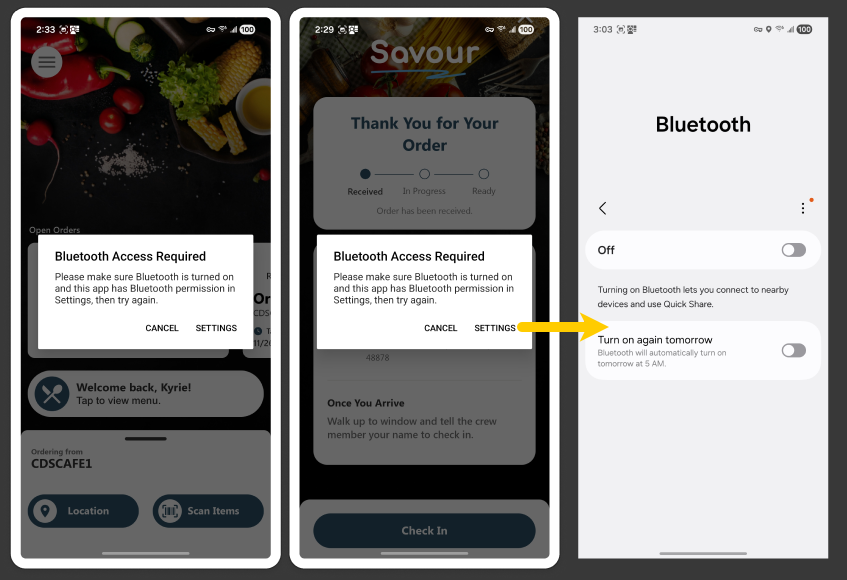
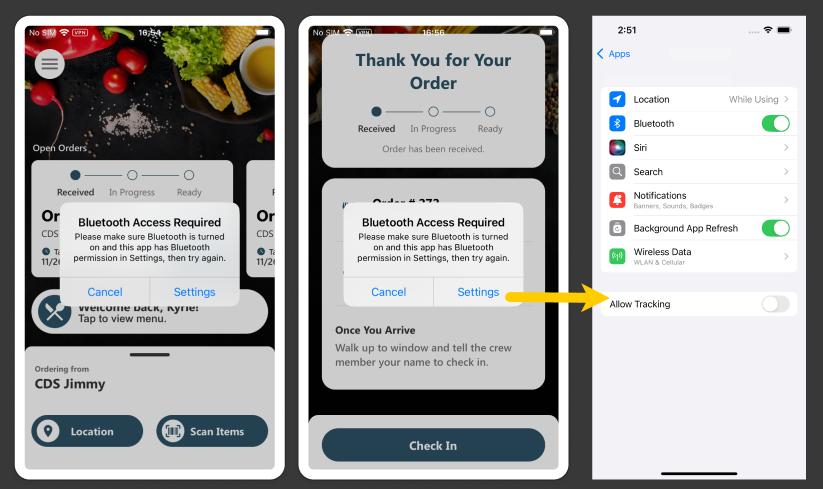
For devices, enable Bluetooth system access and application permissions. For example, for Android or iOS devices.
Screen Captures
Device - Android Bluetooth settings |
| |
Device - iOS Bluetooth settings |
|