Genius Kiosk | Suggestive Upsell
The Genius Kiosk suggestive upsell feature allows merchants to present a set of suggested items to a customer after they add a qualifying item to their cart. The customer sees a dedicated upsell page where they can add or skip items.
The suggestive upsell feature uses product tags and a hidden menu category configured in Data Management to control which upsell items appear and when they appear.
Data Management Configuration
To configure suggestive upsell items in Data Management:
Create a new menu category using a consistent naming convention. This is the container for the upsell menus. For specific steps, see Create a Menu Category.
Note
Save the menu category name to use for Foodservice Management (FSM) Portal configuration steps. For example, Kiosk Suggestive Sell.
Create upsell menu item groups. For specific steps, see Create Menu Item Group.
Inside the upsell menu category, create one menu item group for each upsell menu. Each group is a separate upsell experience, and the group name becomes the page title on the upsell screen.
Add standard menu items to each group. For example:
Sides containing French Fries, Onion Rings, Side Salad
Treats containing Chocolate Chip Cookie, Brownie, Ice Cream
Drinks containing Bottled Water, Soft Drink, Lemonade
Note
Items in these groups can be standalone items, items with modifiers, or bundles. The kiosk handles each type appropriately:
Standalone items (no modifiers): Customers can tap to add directly from the upsell page. Multiple items can be selected.
Items with modifiers: Tapping takes the customer into the standard modifier flow. After completing, they move on and do not return to the upsell page.
Bundles: Tapping takes the customer into the standard bundle maker. After completing, they move on.
Tag qualifying products. For specific steps, see Product Tags.
On each product that should trigger an upsell, add a product tag in this format:
KioskUpsell_[GroupName].Replace [GroupName] with the exact name of the menu item group to display. For example:
Burger tagged with KioskUpsell_Sides
Pizza Combo tagged with KioskUpsell_Treats
Chicken Wrap tagged with KioskUpsell_Drinks
Note
Tags can be assigned to standalone items or bundle/combo parent items. One tag per product. If a product is assigned multiple upsell tags, the kiosk uses the first one it finds.
FSM Portal Configuration
→ → → → →
Note
Prerequisite: A menu sync must be completed prior to configuring the setting listed below. For specific steps, see Menus - Sync Menu Data.
To configure the FSM Portal setting for suggestive upsell:
From Revenue Centers, select Open for the revenue center to configure.
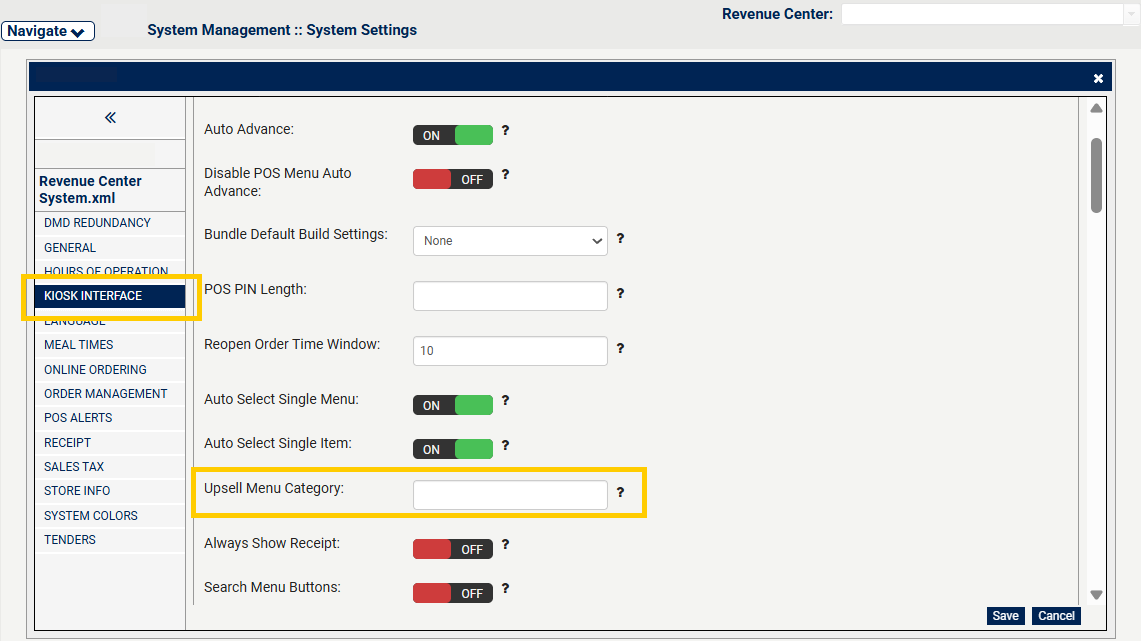
From the revenue center, select Kiosk Interface.
From Kiosk Interface, enter the exact name of the menu category created in Data Management in the Upsell Menu Category text field.
Note
Leave this field blank to disable the upsell feature entirely.
From the lower-right of Kiosk Interface, select Save.
From the lower-right of System Management, select Publish and select OK from the dialog box.
From System Management :: Publish, select Publish Now.
From System Management :: Publish, select Continue. A message displays at the top of the System Management page after the Publish process has completed on FSM Portal.
Screen Capture
Kiosk Interface |
|