Queue Time
Queue Time tracks the time when a customer's order joins the queue of active orders. Set up Queue Time to ensure orders in the POS and Kitchen Management queues are sorted consistently.
Order Destination Setup
→ → → → →
Use Order Destinations in Data Management to set up:
Queue Time by Order Destination
Queue Time by Order Source
Important
Queue Time by Order Destination and Order Source are mutually exclusive. To use Queue Time by Order Source, Queue Time by Order Destination must be set to Never.
Queue Time by Order Destination
From the General section of Order Destinations, define the following:
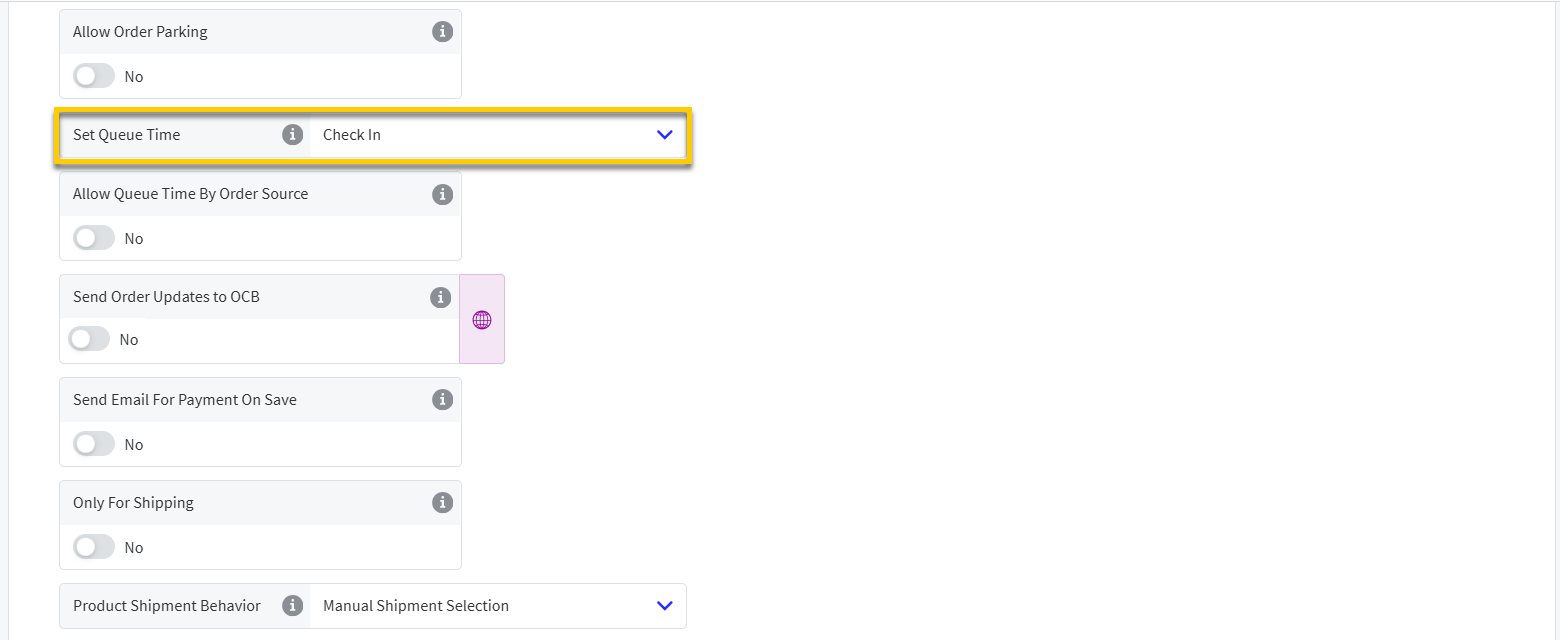 |
Set Queue Time | Track the "queue time" of an order to determine how long the order is waiting in the queue. From the dropdown, select the order state that determines when the queue time for this order destination starts:
|
Queue Time by Order Source
From the General section of Order Destinations, define the following:
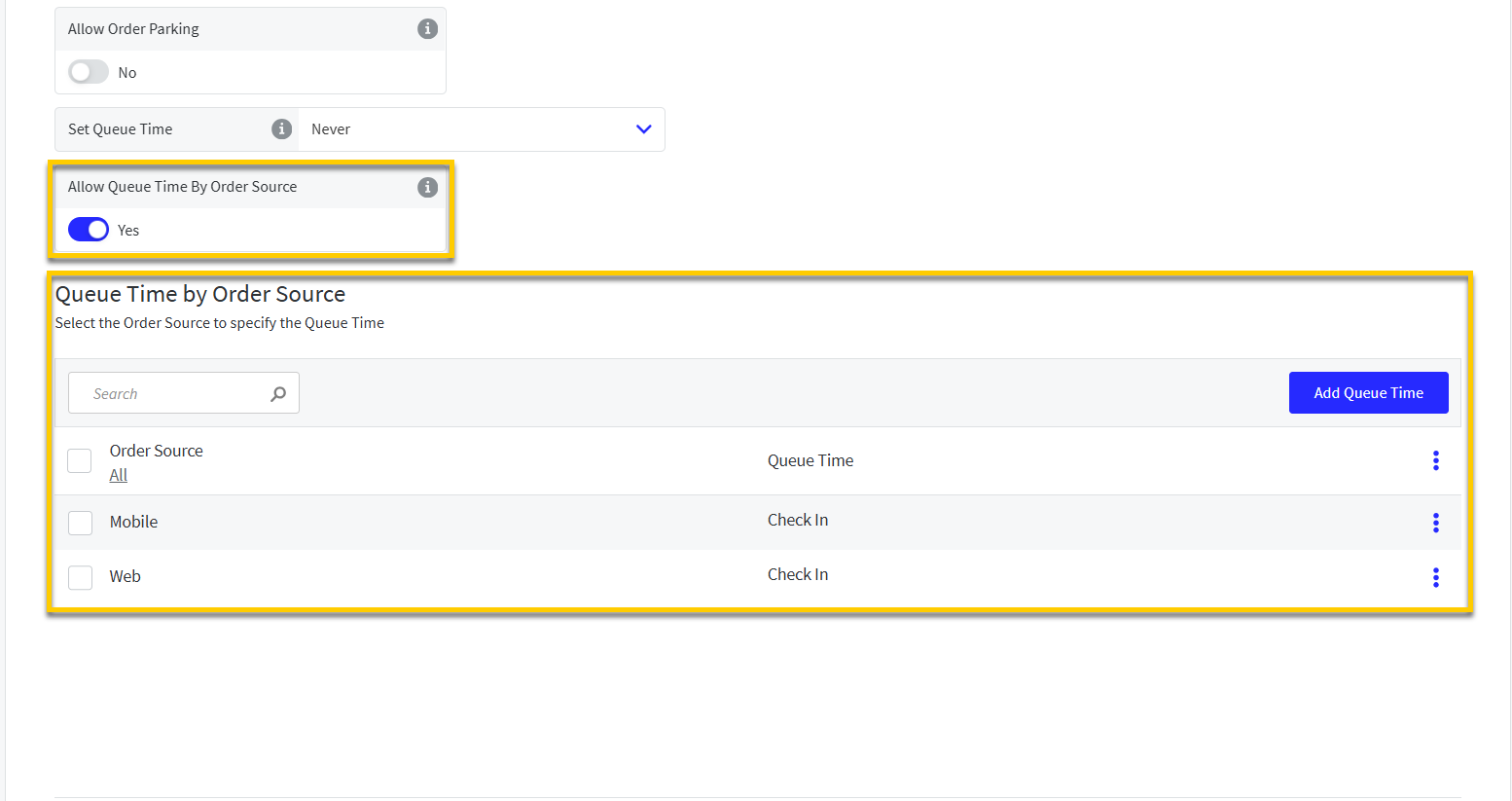 |
Allow Queue Time By Order Source | Toggle On to set the queue time based on order source. ImportantTo set queue time by order source, Set Queue Time for the order destination must be set to Never. | |
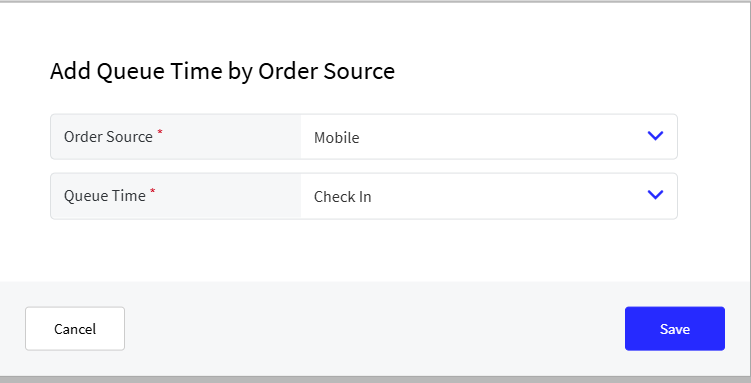
Queue Time by Order Source | When Allow Queue Time By Order Source is toggled On, add order sources for queue time:
|
Order Lanes Sorting
→ → → → → →
Use Order Lanes in Data Management to define how orders are sorted in an Order Lane on Open Order Screens.
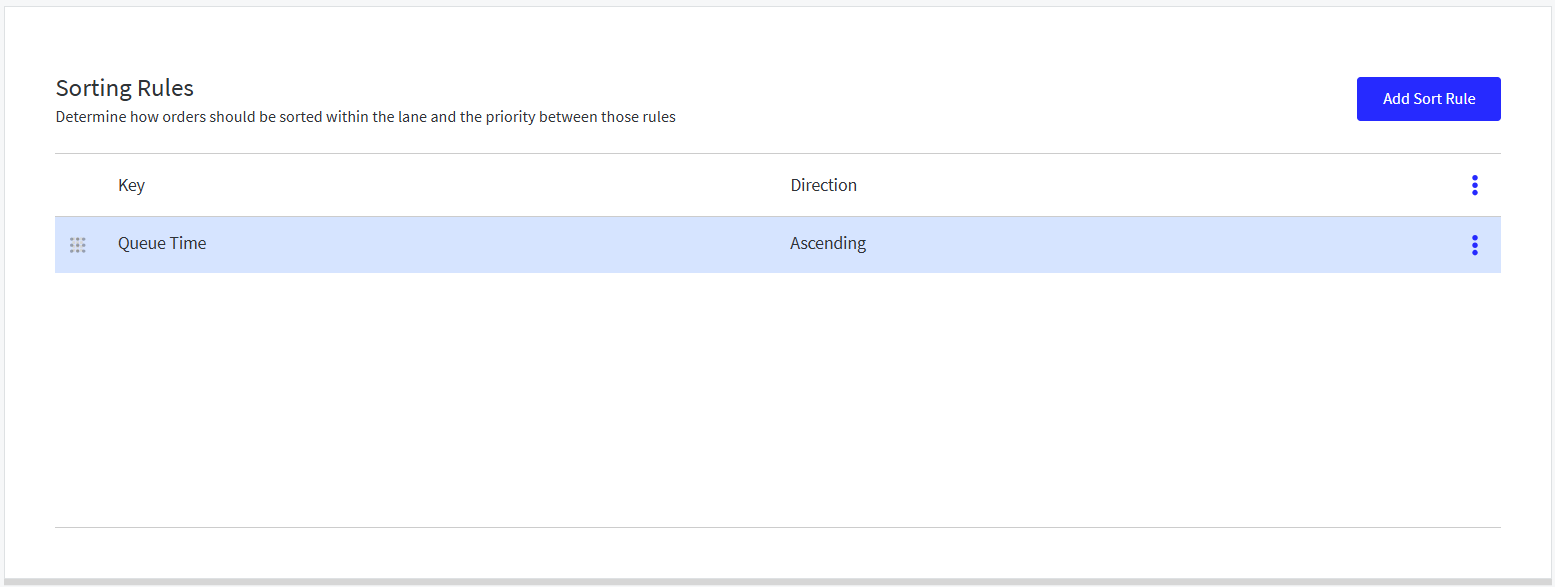 |
Open the Sorting Rules page of Order Lanes.
From the Sorting Rules section, select Add Sort Rule.
From the Key dropdown, select an order property to sort.
From the Direction dropdown, select the sorting direction for the selected key.
Ascending - Sort the key alphabetically from A-Z.
Descending - Sort the key alphabetically from Z-A.
From the lower-right of the Add Sort Rules window, select Apply.
Select and drag the control to the left of the rules to sort them from highest-to-lowest (where the rule at the top has the highest rank).
From the upper-right, select Save.
Kitchen Screen Sorting
→ → → → →
Use Kitchen Screen Settings in Data Management to define sorting rules for orders on a kitchen screen.
 |
Open the Sorting Rules page of Kitchen Screen Settings.
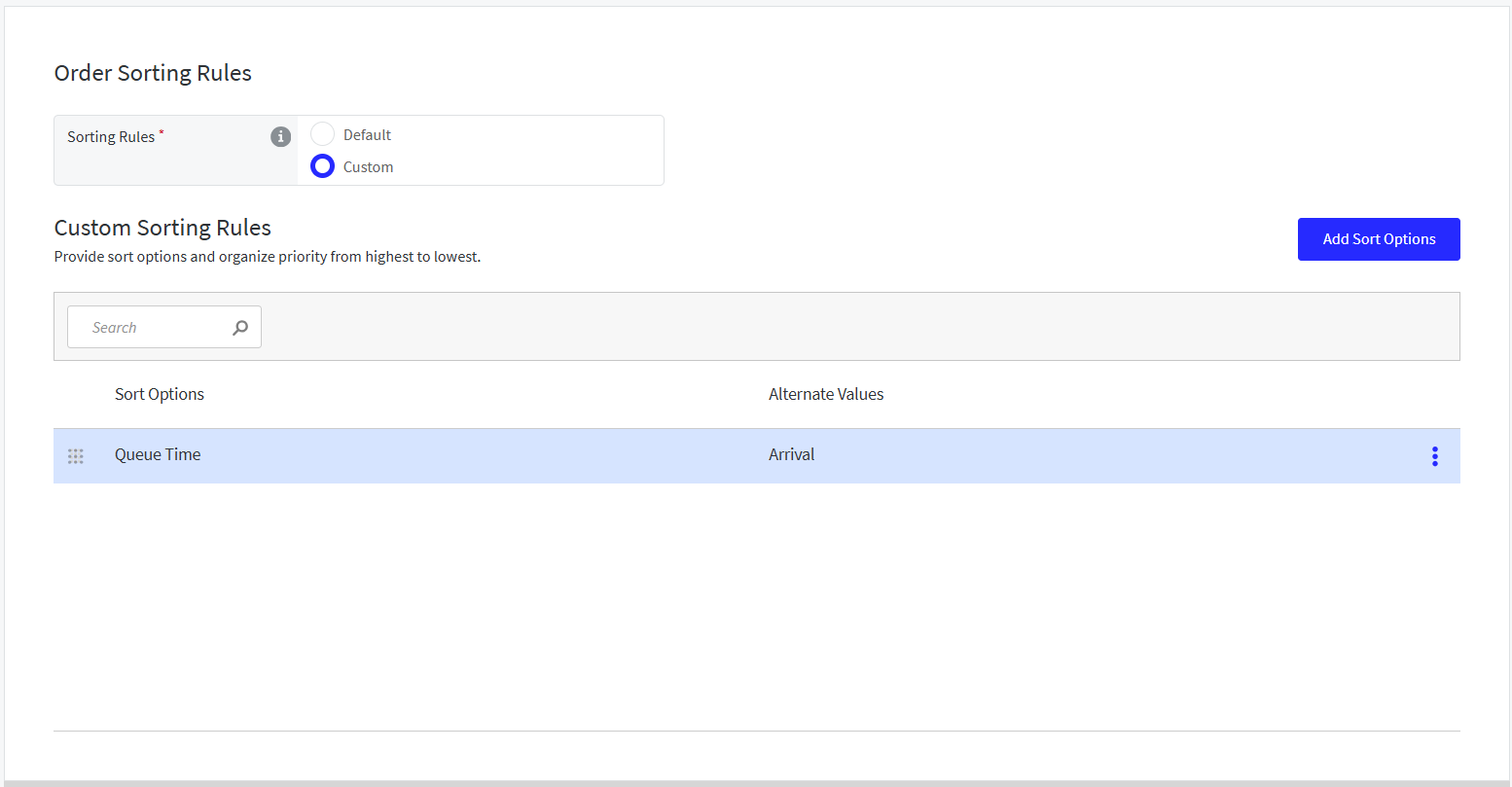
From the Sorting Rules page, locate the Order Sorting Rules section.
From the Sorting Rules field, select Custom.
From the upper-right of Custom Sorting Rules, select Add Sort Options.
From Add Sort Options, select the preferred order events to use when sorting orders on the kitchen screen.
For example, select Queue Time to sort orders by their respective Queue Time from earliest to latest.
From Custom Sorting Rules, select and drag the control to the left of the rules to set the priority (where the rule at the top has highest priority).
Define Alternate Queue Time Value
Note
It is recommended to always define an alternate Queue Time value for order sorting on account the Queue Time may not always be specified for in-store orders.
To define an alternate value for the Queue Time sort option:
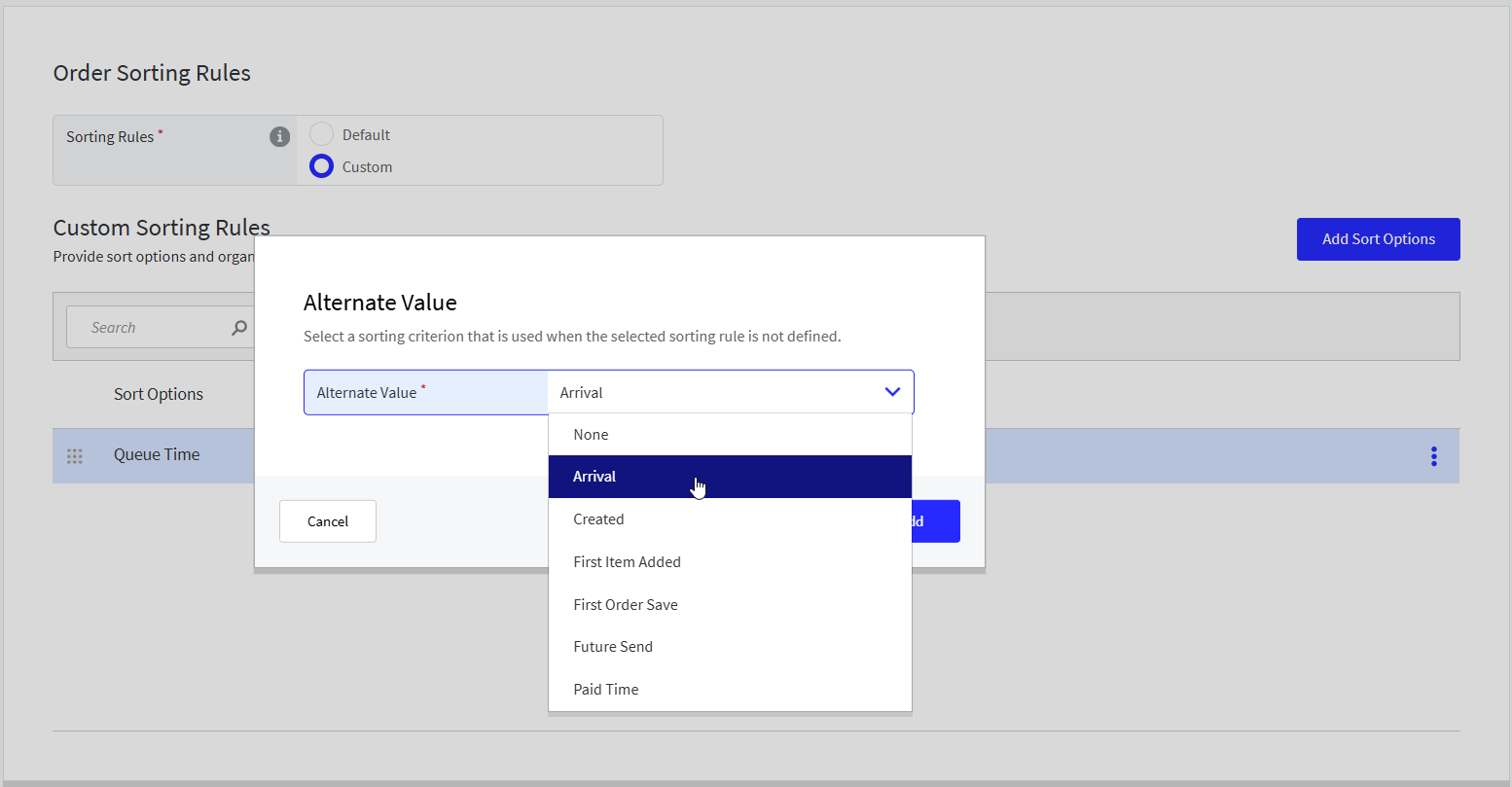 |
From the right of the Queue Time row, select the 3-dot menu.
From the popup menu, select Edit Alternate Values.
From the Alternate Value dropdown, select an alternate sorting criterion to use if the Queue Time sorting rule is not defined.
From the lower-right of the Alternate Value window, select Add.