Omni Menu Publisher V2: Getting Started
Example Workflow
This workflow describes how the Omni Menu Publisher supports syncing menus between the data maintained on Omni and a partner:
When Omni detects that a menu has changed, it notifies the partner that there is a new menu available by sending a POST request to a webhook URL defined by the partner during onboarding.
Depending on the partner's requirements, the body of the POST request contains the following information:
A URL to the Omni Menu Webhook - The Menu Webhook URL includes a
SICOM_Menu_IDvalue and is used to request the new menu in JSON format.The Partner sends a GET request to the Menu Webhook URL to obtain the menu JSON. See the Get Menu API operation definition for details.
A menu reference ID - The reference ID will be used as a URL parameter in a predefined Menu Webhook URL, which the partner uses to request the new menu in JSON format.
The Partner sends a GET request to the Menu Webhook URL to obtain the menu JSON. See the Get Menu API operation definition for details.
A full menu in JSON format - The new menu is included in the body of the request.
The Partner ingests the menu directly into their system.
Once the partner has obtained the menu in JSON format, the Partner ingests the menu into their system. See the Substitution Lists and Menu Construction topics for details.
When the menu has been processed, the Partner sends a notification to Omni that indicates whether the menu update operation was successful. See the Update Status operation definition for details.
Menu Construction
Once an integrator receives the JSON code for a menu from a Get Menu request, they must parse and incorporate the menu components into their application in order to build the menu. Ideally, menus will follow the following structure:
Menu Category
Combo/meal item
Main menu item
Default side menu item
Substitutable side menu items
Follow the steps below to identify the JSON components required to construct a menu in this structure. The code samples included with these instructions construct this example menu:
Menu Category: DLV - BURGERS
Combo/meal item: CMMD DBL CHS DLV ( price $4.79)
Main menu item: DBL CHS BURGER DLV (price included)
Default side menu item: MD FRY DLV (price included)
Substitutable side menu items:
MD FRY DLV (default, upcharge price $0)
LG FRY D L V (upcharge price $1.50)
MD ONION RING DLV (upcharge price $.50)
LG ONION RING D L V (upcharge price $1.70)
Default side menu item: MD COKE D L V (price included)
To construct a menu from Omni menu components:
Identify the Plu numbers (
Plunum) of the main products (combo items) on the menu:{ "Plunum":83020611, "Category_uid":92, "name":"CMMD DBL CHS DLV", "Available":1, "Is_non_food":false, "Type_uid":18, "Price":479 },Identify the modifiers associated with that product's plu bom. Each modifier will have a
bom_plunumequal to the product'sPlunum:[ { "bom_plunum":83020611, "item_plunum":80020602, "quantity":1, "substitution_rule":1, "substitution_list_num":"0" }, { "bom_plunum":83020611, "item_plunum":80049999, "quantity":1, "substitution_rule":0, "substitution_list_num":"50" }, { "bom_plunum":83020611, "item_plunum":80080102, "quantity":1, "substitution_rule":0, "substitution_list_num":"0" } ],Identify each modifier's
substitution_list_numand find the equivalentlist_num. Record thelist_header_uidattached to each list.{ "list_header_uid":1, "list_num":"50", "name":"Test Products" },Within the
list_detailsobject, lookup all items that include a modifier'slist_header_uid. These items comprise the substitution list for that modifier. Thevaluefield in each list item provides the upcharge price for that substitution."list_details":[ { "list_header_uid":1, "list_item":"80049999", "value":"0", "from_quantity":"0", "to_quantity":"0" }, { "list_header_uid":1, "list_item":"80050000", "value":"120", "from_quantity":"0", "to_quantity":"0" }, { "list_header_uid":1, "list_item":"80050099", "value":"50", "from_quantity":"0", "to_quantity":"0" }, { "list_header_uid":1, "list_item":"80050100", "value":"170", "from_quantity":"0", "to_quantity":"0" }, {...
Substitution Eligibility
Plu substitution eligibility is determined by the category ID of each plu; plus can only be substituted for a plu with the same category_uid value. These categories are represented in JSON as in the following example:
         {
            "plu_categories_uid":92,
            "name":"DLV - BURGERS"
         },
Substitution List Rules
For references, the available substitution list rules are:
      "substitution_rules":[
         {
            "name":"CAN_BE_SUBSTITUTED",
            "substitution_rule_uid":0
         },
         {
            "name":"NO_SUBST_PERMANENT_ITEM",
            "substitution_rule_uid":1
         },
         {
            "name":"MUST_SUBSTITUTE",
            "substitution_rule_uid":2
         },
         {
            "name":"OPTIONAL_SUBSTITUTE",
            "substitution_rule_uid":3
         },
         {
            "name":"ALLOW_SUBST_NO_UPSIZE_ALLOWED",
            "substitution_rule_uid":4
         },
         {
            "name":"MUST_SUBST_NO_UPSIZE_ALLOWED",
            "substitution_rule_uid":5
         },
Substitution Lists
Substitution lists provide a selection of items that can be substituted for a given default item in a combo. In order to include a substitution list in a menu, integrators must first build the substitution list in the SICOM Portal.
Use the following steps to set up a substitution list in the SICOM Portal:
Once logged in to the SICOM Portal, open the MM tab and navigate to Admin Options > Upcharge Lists.
Two lists must be created. Use the List Type drop down to select the list type:
A "value meal" list - This list contains the meals to which the assigned upcharges will apply. Ensure that all desired value meals are added to this list.
A "product" list - This list contains the default items, the substitutable items for each default item, and the upcharge prices for each substitutable item. Ensure that the substitutable items and accompanying upcharge prices are assigned as desired.
Once both lists are created, navigate to Admin Options > Assign Upcharge Lists. Assign both the value meal and product lists to the desired Price Group.
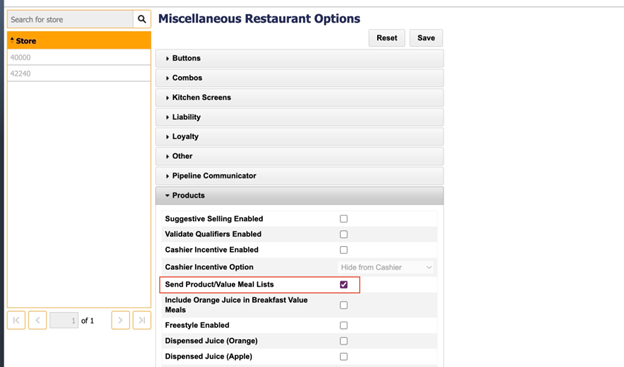
Navigate to Admin Options > Manage Misc Restaurant Options > Select Store Number > Products. Find the "Send Product/Value Meal Lists" setting and ensure the checkbox is selected, as shown below:
Sync the recently saved data with the POS site and run a terminal update.