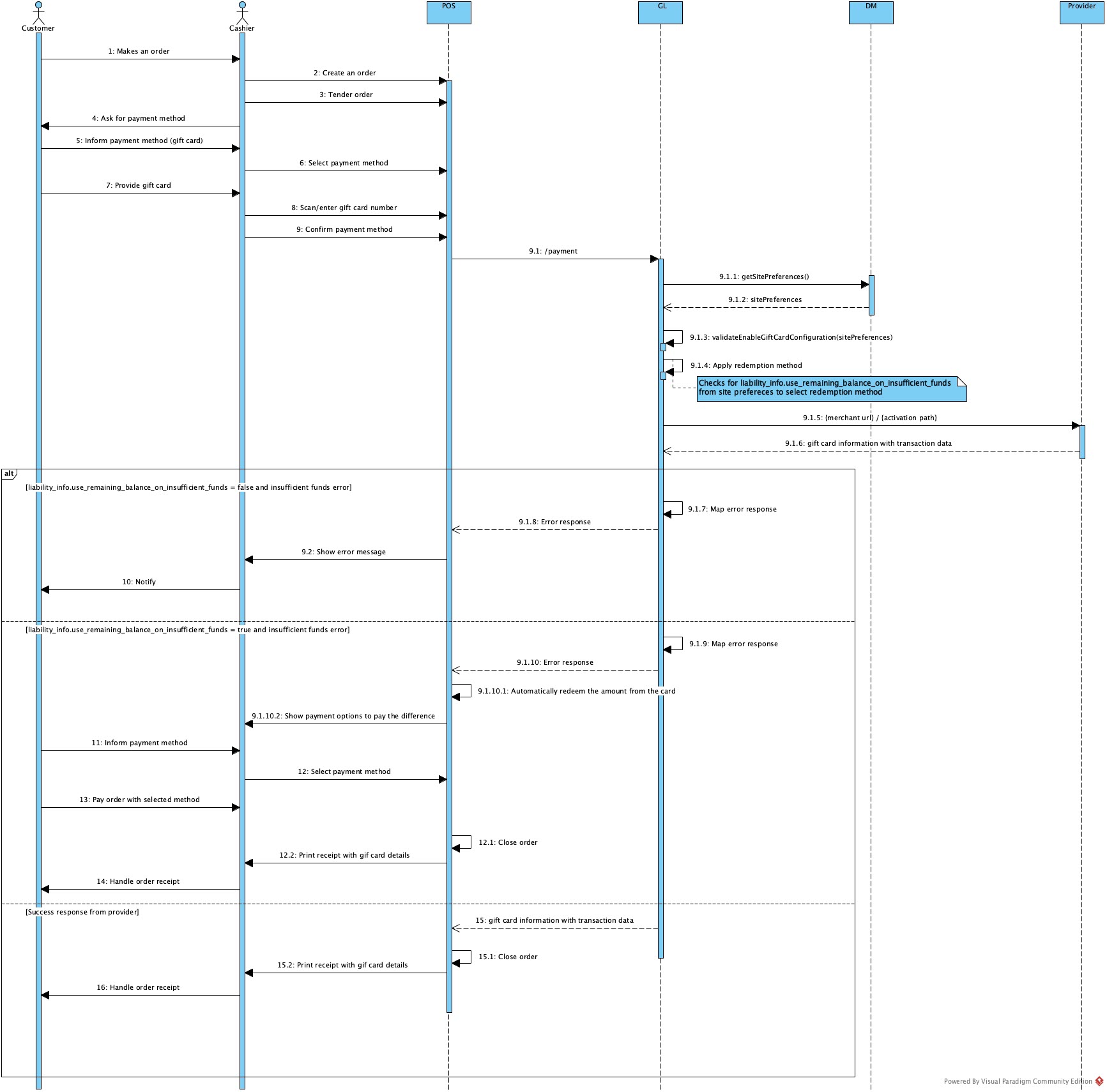
Gift Card Service | Getting Started
Gift Card Setup
Follow the steps below to set up gift card services on your account using the Data Management in the Portal:
Log in to the Portal and select the 4-Dot menu navigate to Data Management→Ordering Settings→Settings→Preferences→Set Company Defaults.
Select the Liability Items section to open it, and open Gift Cards.
Toggle the Enable Gift Card Configuration switch to On. The Gift Cards settings will expand as shown:
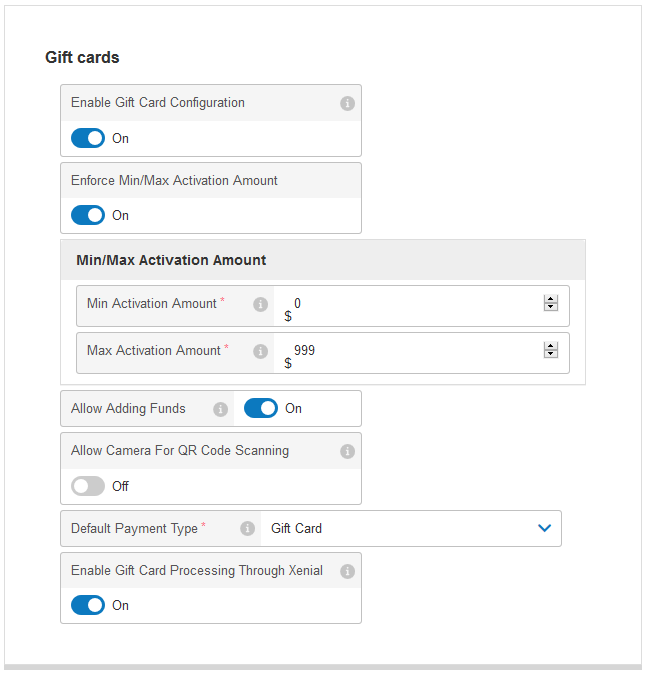
Select Apply at the top of the Default Company Preferences page.
Use the navigation panel to select Settings > Gift Provider Profiles. The image below shows the navigation and Gift Providers Profiles screen:
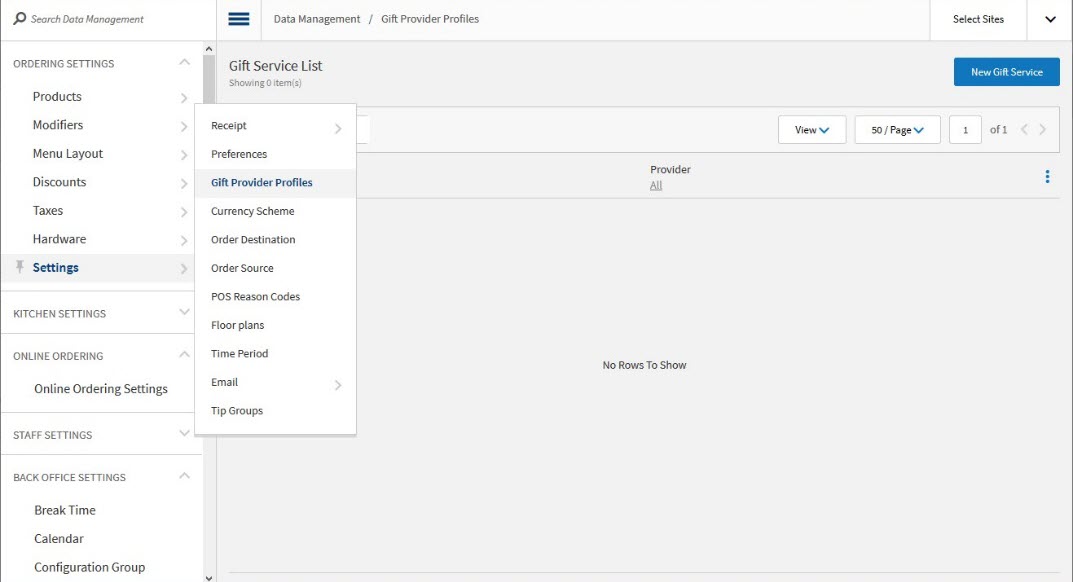
Select New Gift Service in the upper right. The Create New Gift Service screen opens:
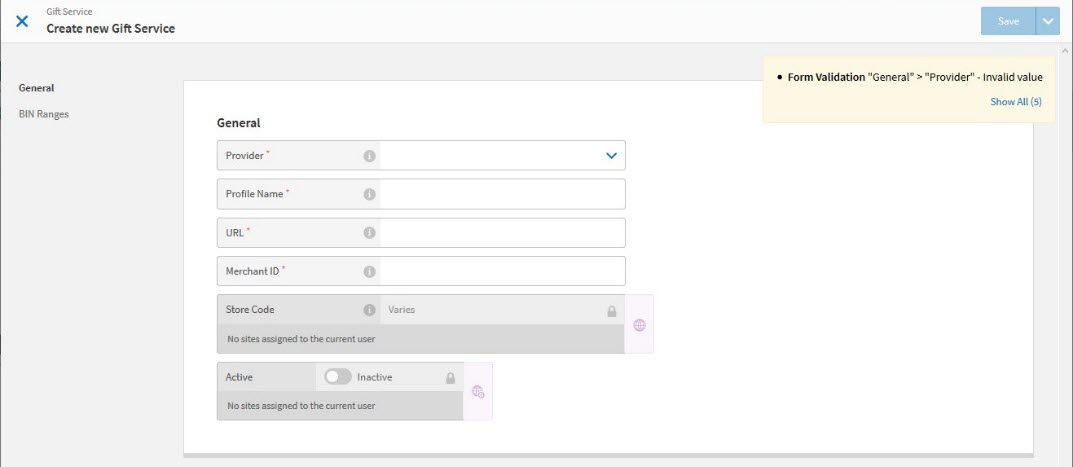
Fill in information about the gift service profile:
Provider - Select the correct provider from the drop down menu. Different settings may display depending on the provider selected. For example, SVS and Paytronix require a username and password.
Profile Name - Enter a descriptive name for this gift service.
URL - Enter the back-end URL for the gift card service provider selected previously.
Merchant ID - Enter the merchant ID of the gift card service provider.
Store Code - Enter the store code used by the gift card service provider for each of the sites that will use the gift card service. Users can define store codes for sites already connected to their user account.
Active - Flip the toggle switch from Inactive to Active for each site that will be using this gift card service profile.
Select Save at the top of the page. The provider profiles is added to the table on the Gift Service List screen. Activate, deactivate, edit, or delete the profile from the Gift Service List screen as needed.
Getting Started
The steps below describe how a merchant should activate a gift card, add value to that gift card, and use that gift card to submit a payment:
Send a POST request to the Activate endpoint with the card data in the body of the request. See the Activate operation definition for details. The example below shows the request body of the Activate operation:
{
   "card_type": "GIFT",
    "currency": "usd",
    "card_number": "9999999999999999",
    "transaction_token": "9999999999999999",
    "local_time": "13:10:01.001",
    "acquired_method": "MANUAL",
    "amount": 12,
    "is_open_price": true,
    "order_id":"9999999999999999",
    "pin":"999",
    "terminal_id": "9",
    "clerk_id": "999",
    "terminal_txn_id": "999",
    "application_version": "1.0.0",
    "local_date": "20YY-07-02",
    "date_time": "20YY-07-02T13:10:01.001Z"
}
Send a PUT request to the Add Value endpoint with the amount of currency to add to the gift card balance in the body of the request. See the Add Value operation definition for details. The example below shows the request body of the Add Value operation:
{
    "card_number": "9999999999999999",
    "card_type": "GIFT",
    "currency": "usd",
    "transaction_token": "9999999999999999",
    "is_open_price": true,
    "order_id":"9999999999999999",
    "pin":"999",
    "local_time": "13:10:01.001",
    "acquired_method": "MANUAL",
    "terminal_id": "9",
    "clerk_id": "999",
    "terminal_txn_id": "999",
    "application_version": "1.0.0",
    "local_date": "20YY-07-02",
    "date_time": "20YY-07-02T13:10:01.001Z",
    "amount": 1
}
Send a PUT request to the Payment URL with the amount of the transaction in the body of the request. See the Payment operation definition for details. The example below shows the request body of the Payment operation:
{
    "card_number": "9999999999999999",
    "local_time": "13:10:01.001",
    "acquired_method": "MANUAL",
    "order_id":"9999999999999999",
    "transaction_token": "9999999999999999",
    "card_type": "GIFT",
    "currency": "usd",
    "pin":"999",
    "terminal_id": "9",
    "clerk_id": "999",
    "terminal_txn_id": "999",
    "application_version": "1.0.0",
    "local_date": "20YY-07-02",
    "date_time": "20YY-07-02T13:10:01.001Z",
    "amount": 12
}
Gift and Loyalty API returns a response indicating the status of the transaction.
Gift Card Flows
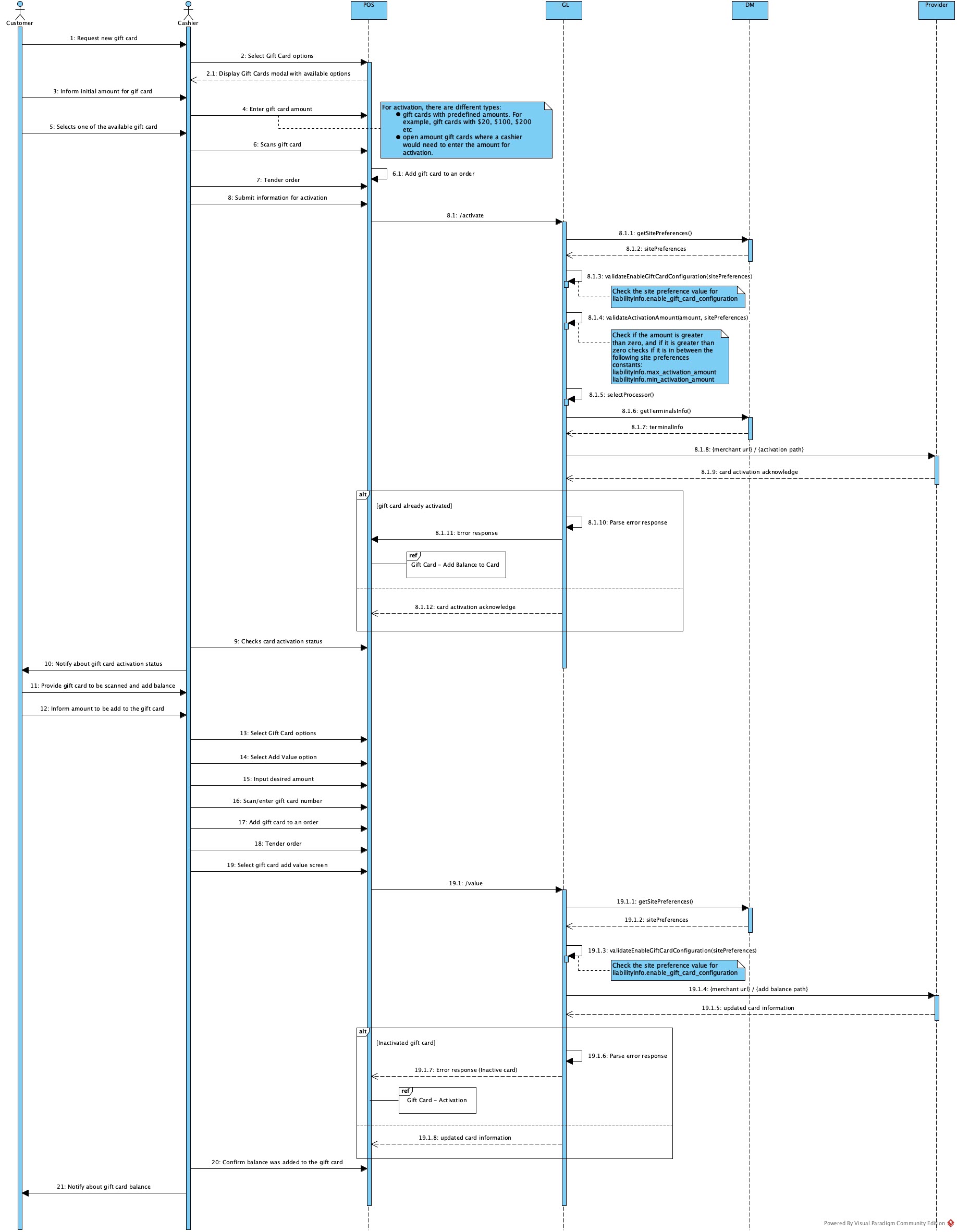
Activate / Add Balance
The following endpoints are used in this flow:
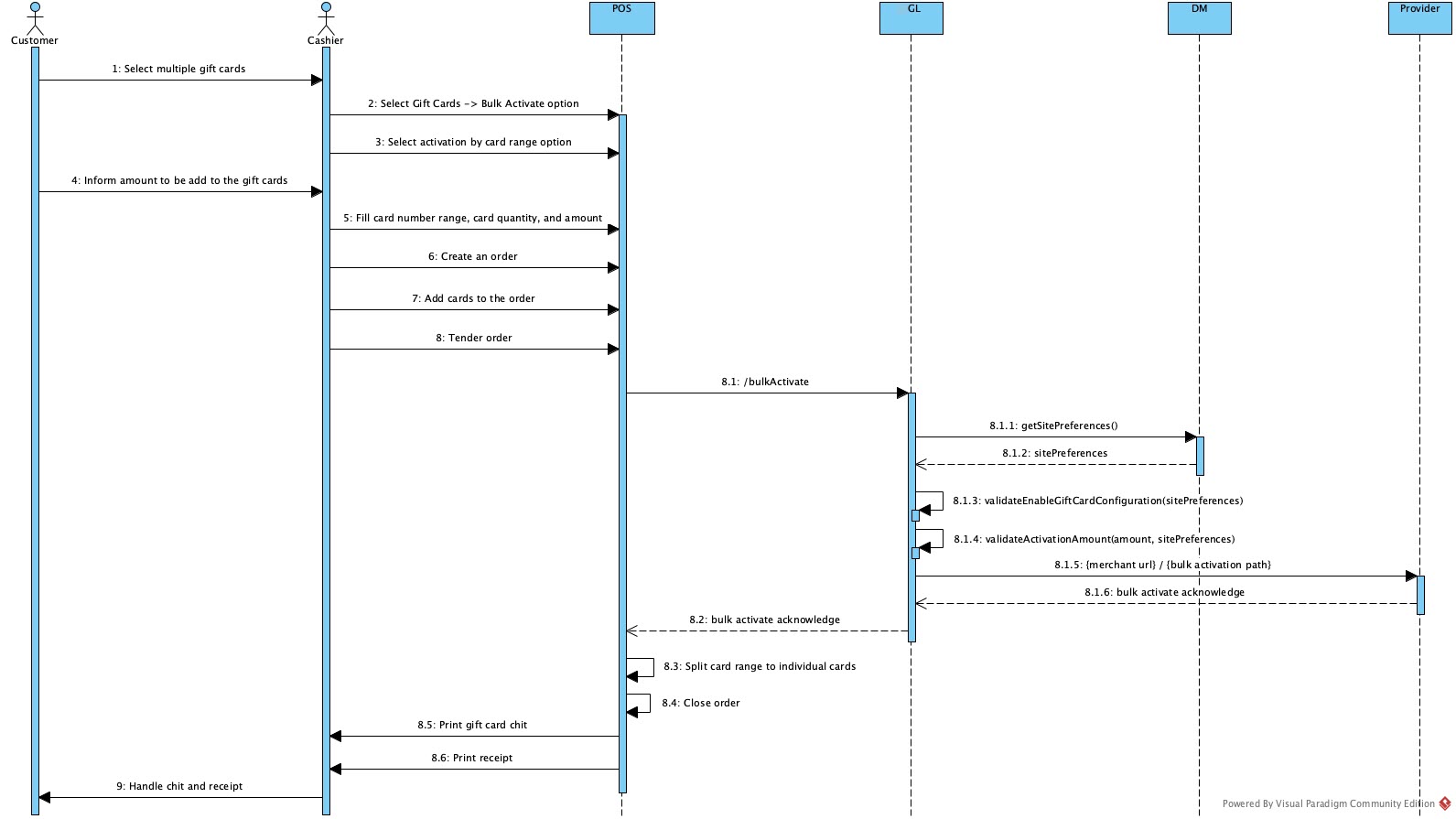
Bulk Activate
The following endpoint is used in this flow: Bulk Activate
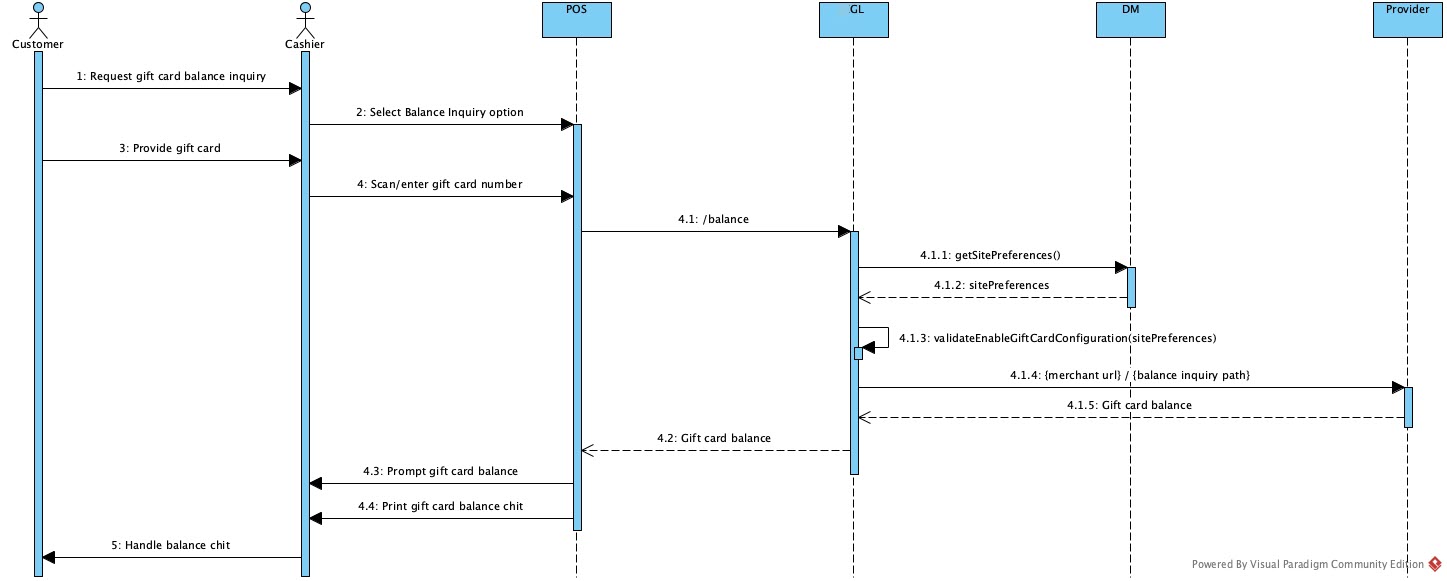
Balance Inquiry
The following endpoint is used in this flow: Balance
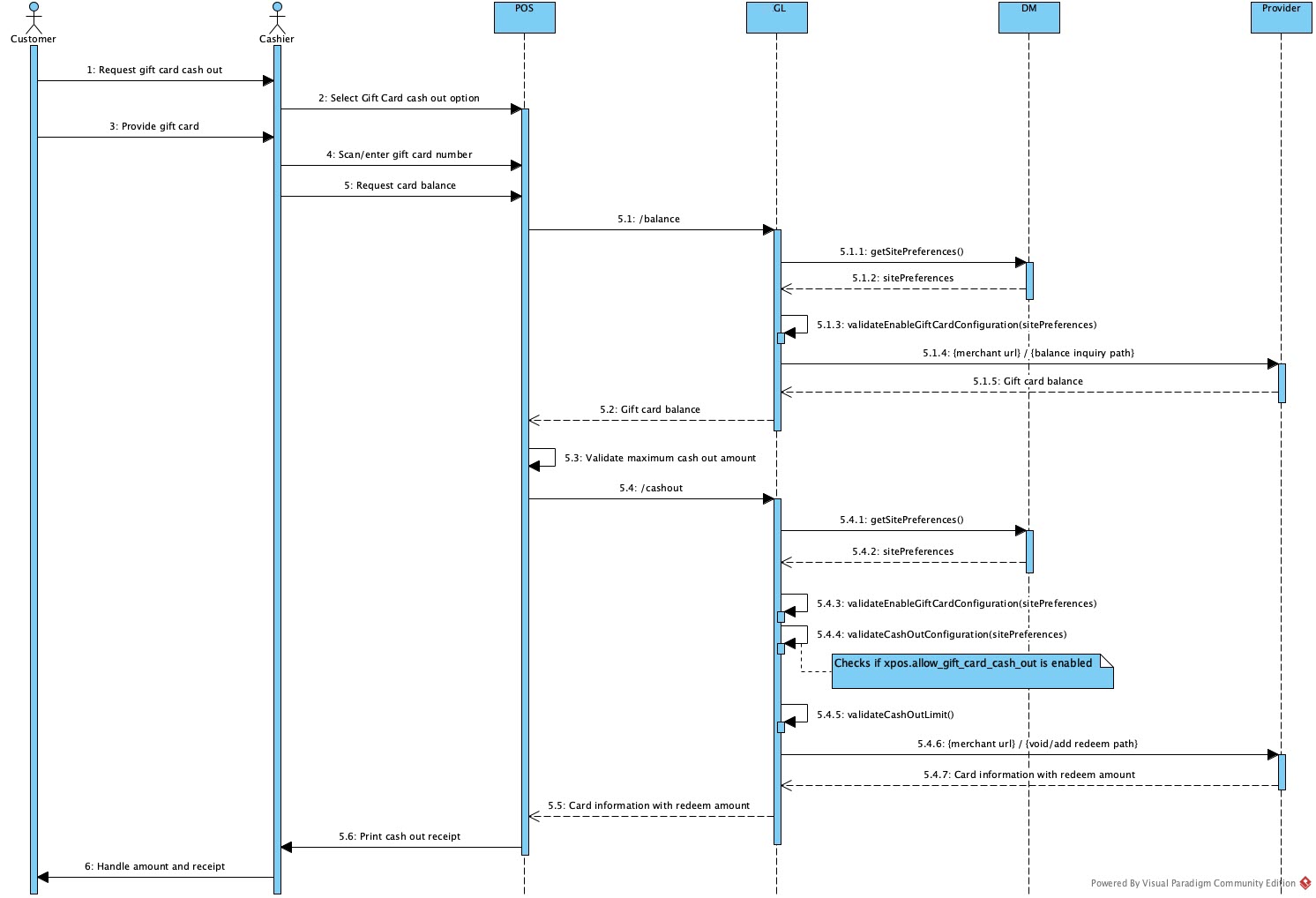
Cash Out
The following endpoints are used in this flow:
Payment
The following endpoint is used in this flow: Payment